



SFC Scannow serves as a vital command for maintaining the integrity of operating system files is crucial for smooth performance and stability on a Windows computer. This article delves into what SFC is, its significance, and provides a detailed guide on how to effectively use this tool to resolve system errors.
What is System File Checker (SFC)?
System File Checker, commonly known as SFC, is a utility in Microsoft Windows that allows users to scan for and restore corruptions in Windows system files. This tool has been a part of the Windows toolkit since Windows 98, evolving over time to become more efficient and user-friendly. SFC is incredibly practical for running hardware diagnostics.
How SFC Works
SFC scans the integrity of all protected system files and replaces incorrect versions with genuine Microsoft versions. When the tool runs, it performs a comprehensive check of these files, identifying any that are corrupt or have been tampered with.
When to Use SFC
SFC is particularly useful in troubleshooting common system issues like blue screen errors, issues with Windows updates or unexplained system crashes. However, it’s important to note that SFC is not a cure-all solution and has its limitations, particularly with issues not related to system files.
How to Use SFC to Repair System Issues
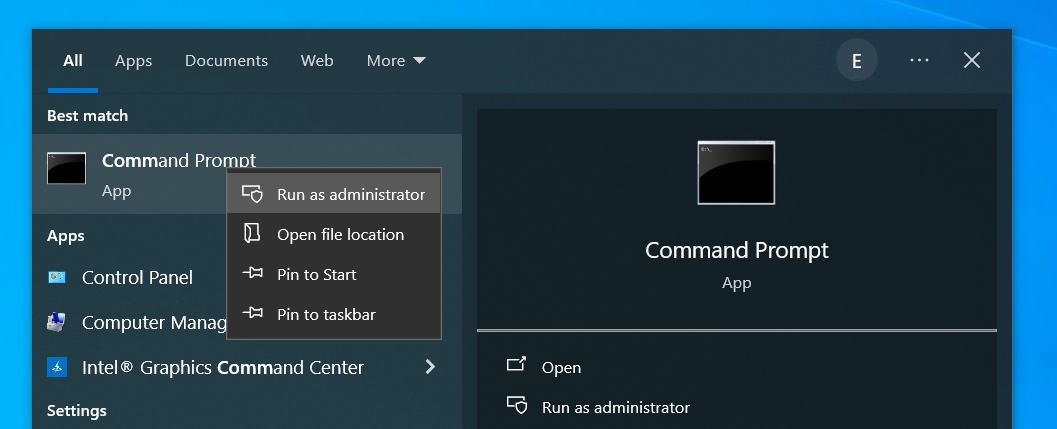
- Open Command Prompt as administrator – Click the Start button, search for Command Prompt and select Run as administrator.
- Run SFC – Type
sfc /scannowand press Enter. The scan will begin, and this may take some time.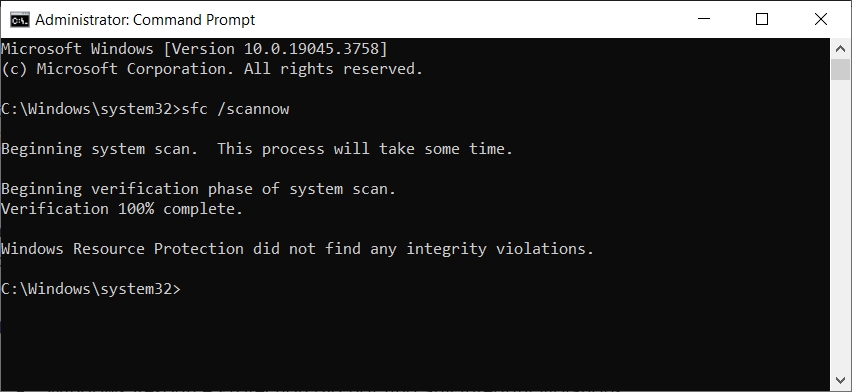
- Interpret SFC messages – Once it finishes, SFC provides feedback on any found issues and whether it was able to fix them.
- Take post-scan actions – If errors are fixed, it’s advisable to restart your computer. If SFC fails to repair certain files, further investigation or alternative methods may be required.


SFC Messages and How to Fix Errors
Once System File Checker completes its scan, it will display one of the following messages:
Windows Resource Protection did not find any integrity violations
This indicates there are no missing or corrupted system files in your system.
Windows Resource Protection could not perform the requested operation
- Restart PC in Safe Mode – Hold down Shift while clicking Restart from the shutdown menu. Select Troubleshoot > Advanced Options > Startup Settings > Restart. After the PC reboots, follow the on-screen instructions to enter Safe Mode.
- Check the PendingDeletes and PendingRenames folders – Open File Explorer, paste
%WinDir%\WinSxS\Tempin the address bar and click Enter to visit this location. If the PendingDeletes and PendingRenames folders do not exist, create new empty directories with these exact names (requires administrator rights).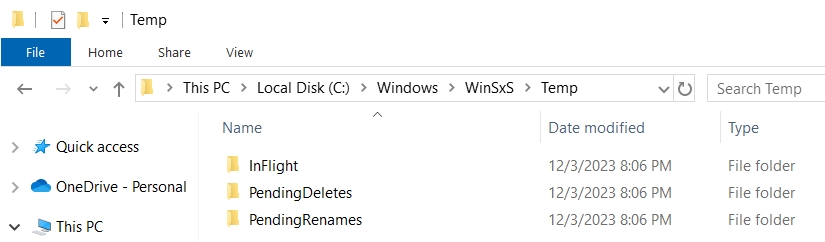
- Run SFC – Open Command Prompt as admin and run
sfc /scannowagain.

Windows Resource Protection found corrupt files and successfully repaired them
The issues have been fixed by System File Checker and no further actions are necessary. You can view details in CBS.Log %WinDir%\Logs\CBS\CBS.log.
Windows Resource Protection found corrupt files but was unable to fix some of them
- Open Command Prompt as administrator.
- Enter
findstr /c:"[SR]" %windir%\Logs\CBS\CBS.log>"%userprofile%\Desktop\sfcdetails.txt" - Close Command Prompt and go to your desktop.
- Open the Sfcdetails.txt file in a text editor or web browser. If the command doesn’t work, open the CBS.log file and search for [SR] entries.
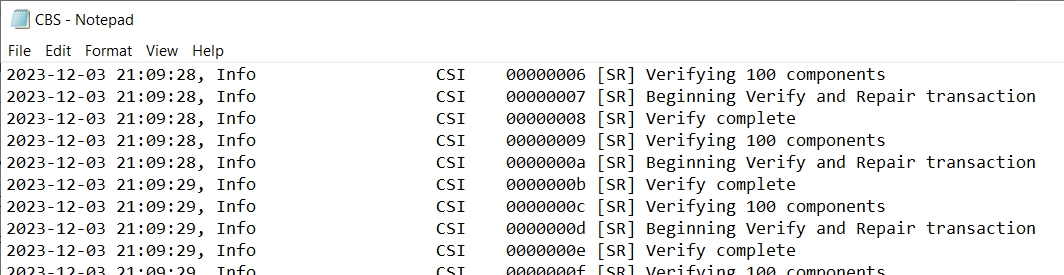
- By taking into account the most recent SFC scan by timestamp, carefully review descriptions that mention missing or corrupt files, writing down the file names and extensions.
- For the following step, you need another PC that has the same Windows version as yours, admin rights on that computer, and a USB flash drive.
- Get started by running
sfc /scannowon this other PC to ensure the files you need to copy are not corrupt. - Find and copy the files you need on the USB flash drive.
- Return to your PC.
- Take ownership of the corrupt system files by launching Command Prompt as admin and entering
takeown /f File_Path. For example,takeown /f C:\windows\system32\netman.dll).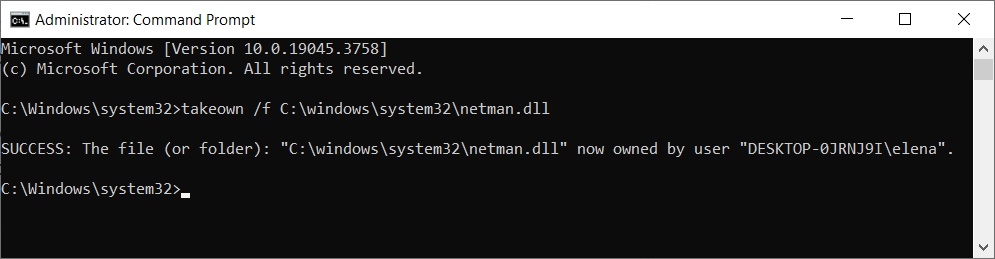
- Grant administrator full access to the corrupt system file using
icacls File_Path /grant administrators:F. For example,icacls C:\windows\system32\netman.dll /grant administrators:F. Do this for every corrupt file that must be replaced.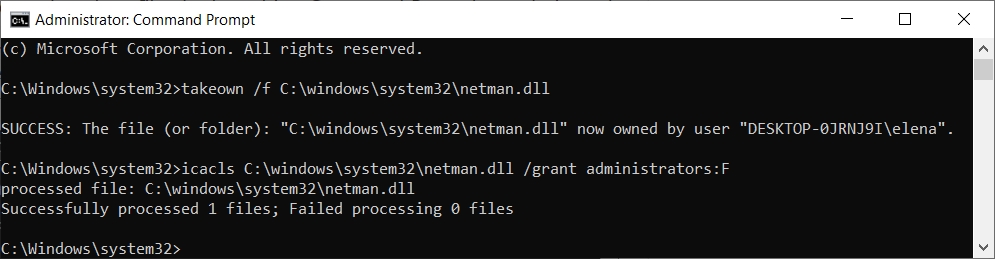
- Copy the good files from your PC to overwrite the corrupt ones.
- Restart your PC and run
sfc /scannowagain.


For advanced troubleshooting, check out the list of SFC parameters.
Frequently Asked Questions (FAQs) about SFC
How long does sfc scannow take?
The duration of the sfc /scannow command depends on various factors, such as system performance, data size, system health, and background processes. Generally, this command can take anywhere between a few minutes and an hour or more – usually 15-30 minutes on a modern and healthy PC.
Does sfc scannow fix anything?
Yes, the sfc /scannow command attempts to repair system integrity violations by replacing the corrupted files with a cached copy that is stored in a compressed folder at %WinDir%\System32\dllcache. If the file doesn’t exist in dllcache, you must manually fix it using a good copy. On the other hand, SFC cannot fix hardware issues, non-system files (like third-party applications or personal files), or Windows installation problems. Also, if the System File Checker itself is broken, it may not be able to repair the files.
Do I need to run SFC in Safe Mode?
It’s not required, but running SFC in Safe Mode can be more effective in some cases, especially if certain files are in use during a normal system operation.
Should I run DISM or SFC first?
When troubleshooting and repairing Windows system issues, it’s generally recommended to run the System File Checker (SFC) first, followed by the Deployment Image Servicing and Management (DISM) tool if necessary. Running SFC before DISM makes sense because if SFC can fix the issues, there’s no need for the more intensive DISM process. If SFC cannot resolve the issues, then running DISM can repair the underlying system image, making a subsequent SFC scan more likely to succeed.
Will SFC remove viruses or malware?
No, SFC is not designed to remove viruses or malware. It’s intended to repair corrupted or modified system files. For malware, use an antivirus program.
Can I use SFC on all versions of Windows?
SFC is available on most modern versions of Windows, including Windows 10 and Windows 11. Its functionality has been consistent since Windows XP.
Is it necessary to back up data before running SFC?
While SFC doesn’t typically affect personal data, it’s always a good practice to have recent backups before performing any system repair operations.
Conclusion
In summary, the System File Checker (SFC) is an indispensable tool for any Windows 10 user seeking to maintain the health and integrity of their operating system. Through its ability to scan and repair corrupted or altered system files, SFC plays a crucial role in resolving a variety of common system issues, ranging from blue screen errors to problems with Windows updates.