



‘Sort by Name’ in Google Drive is that neat trick up your sleeve, designed to line up your files and folders in perfect alphabetical harmony, ascending or descending to your heart’s content. But let’s face it, sometimes magic tricks blow up in your face. No need to panic! Let’s troubleshoot the Drive sorting mischief with straightforward solutions.
TL;DR
Not enough time for a fun read? Here’s an overview of the causes and solutions for the Google Drive ‘Sort by Name’ not working problem:
| Cause | Solution |
|---|---|
| Outdated or not fully compatible browser with Drive | Update your browser, clear cache and cookies, refresh the page, or try another browser |
| Some third-party extensions may interfere with Drive functionalities | Disable third-party extensions one by one to find the culprit |
| Browser cache or cookies are full | Clear browser cache and cookies |
| Recent Drive updates or inherent glitches | Check your Google Dashboard for any reported issues, wait for an official fix, and update Drive |
| Large number of files and folders | Break them down into smaller, more management folders, archive old and unnecessary files, and use the search function for easier navigation |
What can you do with the ‘Sort by Name’ setting in Google Drive?
The sort-by-name feature in Google Drive is particularly useful in various scenarios to improve productivity when managing files, especially when adopting a consistent naming convention.
Here are some practical examples of how the ‘Sort by Name’ option in Google Drive can boost your workflow:
- Tidying your project files: When you’re deep in project work, sorting files by name keeps everything organized. It’s a simple trick that aligns your documents neatly, saving you time when you’re looking for specific pieces of your project puzzle.
- Organizing document series: If you have documents that follow a sequence, like chapters or reports, sorting by name arranges them in their natural order. It’s a hassle-free way to ensure you’re always looking at the right document at the right time.
- Ordering photos chronologically: Naming your photos by date or event and then sorting them by name transforms a cluttered photo collection into an easily navigable album. It’s like arranging your digital memories so you can journey through them without getting lost.
- Lifesaver for teachers: For educators, sorting lesson plans and materials by name means less time searching and more time teaching. It organizes your resources by topic or class, making it a breeze to find what you need, when you need it.

- Finding client files fast: For those managing files for multiple clients or projects, sorting by name is a productivity boost. It’s akin to having an efficient filing system where every client’s information is just a quick glance away.
- Legal docs in a click: In legal work, where document volume can be overwhelming, sorting by name helps you quickly locate specific case files or contracts. It’s a straightforward approach to keep your legal documents in check, ensuring you’re always prepared.
- Version control made easy: If you’re working with multiple versions of a document, sorting by name can clarify which version is the most recent. It’s a neat solution to avoid confusion and ensure you’re always working with the latest information.
- Team collaboration without the chaos: In a shared drive environment, sorting files by name can harmonize how team members access and interact with documents. It promotes a shared understanding of file organization, reducing the time spent searching for documents and enhancing team efficiency.

How do I use ‘Sort by Name’ in Google Drive?
Navigate to any folder in your Google Drive account and click the Name column. All items under the Name column should be immediately sorted from A to Z or Z to A. You can click the ↑ button next to Name to reverse the sort function – the two buttons work exactly the same way.
Here’s a video for how to use the ‘Sort by Name’ feature in Google Drive:

Common Causes of Google Drive ‘Sort by Name’ Not Working
The issue of ‘Sort by Name’ not working in Google Drive could be due to a variety of reasons:
- Problems with Google servers: Hiccups on Google’s end can temporarily disrupt the smooth functioning of Google Drive, including sorting features. These issues could stem from server overloads, maintenance work or unexpected outages affecting multiple users globally.
- Browser-related issues: An outdated or incompatible browser might not gel well with Google Drive’s latest features. Always ensure your browser is up to date to keep things running smoothly.
- Third-party extensions: Those handy browser addons can sometimes be too hands-on with Google Drive, disrupting its normal operations. Try disabling extensions to see if that resolves the issue.

- Browser cache or cookies: Just like a closet, your browser’s cache and cookies can get cluttered over time. Clearing them out might just be the refresh Google Drive needs to get back on track.
- Google Drive updates or glitches: Now and then, a new update or an unforeseen glitch in Google Drive can throw a wrench in the works. These are usually temporary and get ironed out with subsequent updates.
- Large number of files or folders: Having a shamelessly humongous digital archive akin to a public library can overwhelm Google Drive’s sorting mechanisms, leading to performance dips.

How to Fix Google Drive ‘Sort by Name’ Not Working
1. Check Google Workspace Status Dashboard
If your Google Drive’s ‘Sort by Name’ feature isn’t playing ball, there’s a chance the issue isn’t on your end but with Google itself. It’s the oldest breakup line in the book – it’s not you, it’s me – but from Google’s side.

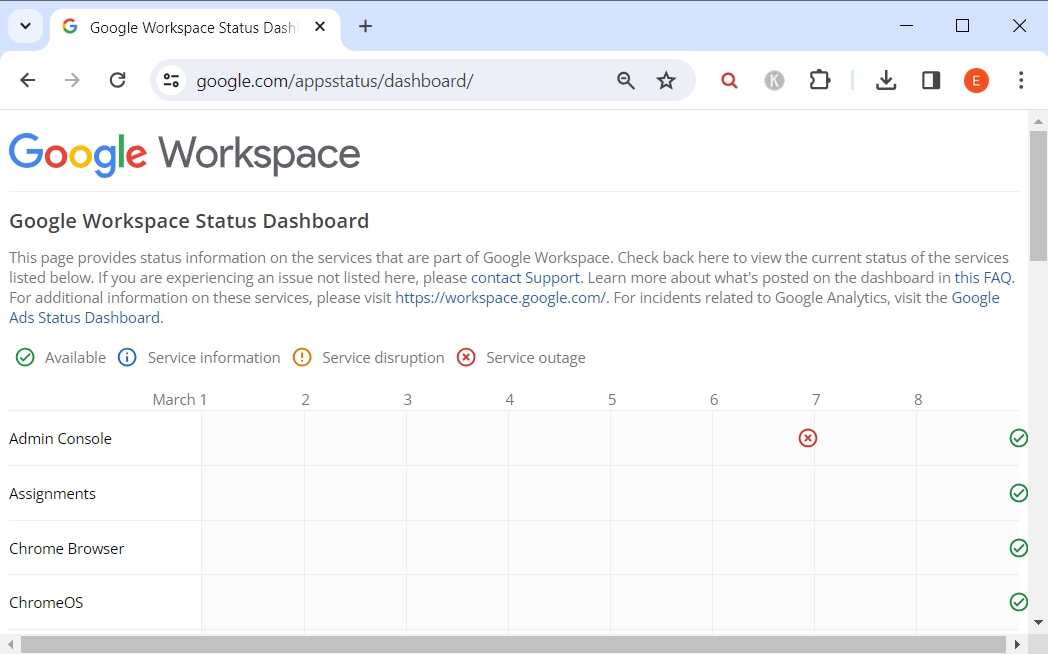
Google Workspace Status Dashboard is your go-to spot to see if there are any hiccups on Google’s side that might be affecting Drive and its features. You can check widespread issues or maintenance activities disrupting the normal operations.
By keeping an eye on this dashboard, you can stay informed about any server errors or service interruptions that might be the root cause of the problem. If there’s an outage or a performance issue reported, it might just be a waiting game until Google sorts it out.
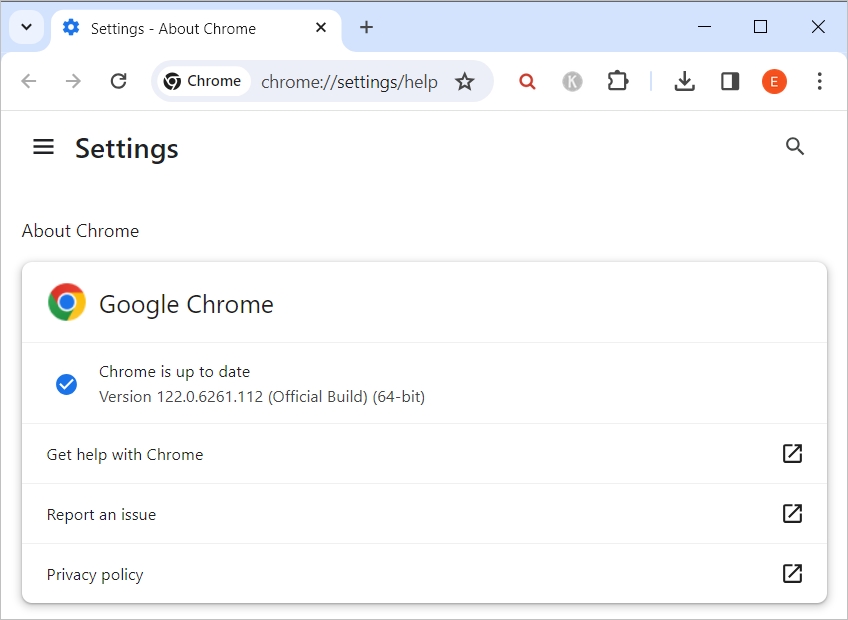
2. Update your browser to the latest version
Assuming you can now use Drive’s sorting function without any issues on the second browser, let’s go back and fix the first one, starting with browser updates.

3. Clear browser cache and cookies
Browser cache and cookies, these pack rats that hoard bits and pieces of your online adventures, remember the sites you’ve visited (cache) and keep tiny notes on your preferences (cookies), all in the name of seamless web surfing. But these hoarders can get too clingy, messing with your Google Drive’s ability to sort things properly, like a cluttered desk that needs a good tidy.

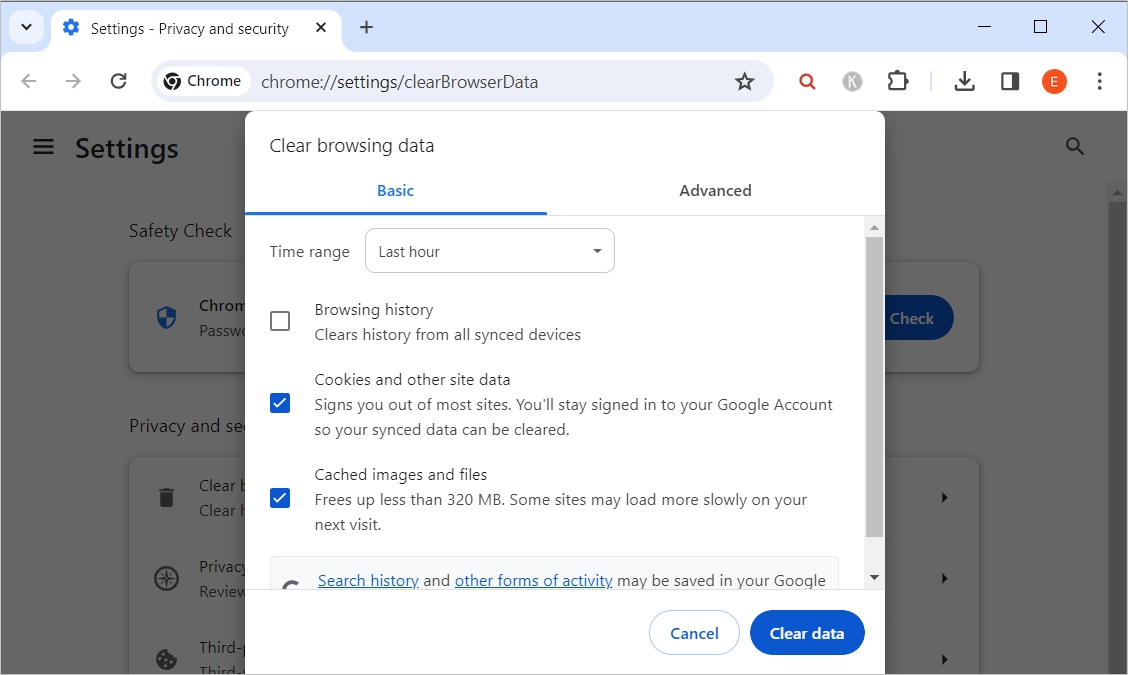
Clearing them out is like staging an intervention for your browser: you’re simply saying, “Look, I appreciate the memories, but it’s time for a clean slate.” Dive into your browser’s settings, hunt down the ‘Clear browsing data’ option, and give those cache and cookies the boot.
4. Disable browser extensions
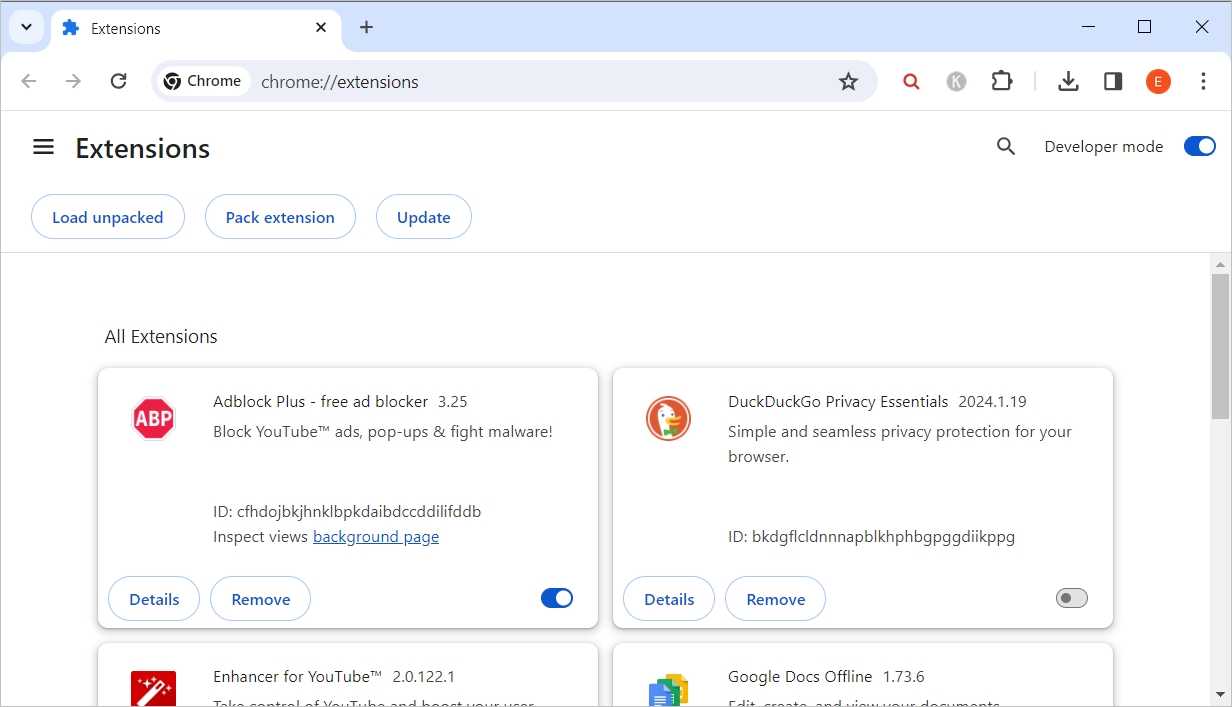
Browser extensions are like those overly helpful friends who sometimes end up spilling coffee on your clean shirt—in this case, your Google Drive’s sorting skills. They mean well, offering to block ads or manage passwords, but occasionally, they get in the way of things running smoothly.
To fix browser extension issues interfering with Drive functionality, you’ll need to turn these helpers off one by one in a game of ‘Guess Who?’. Dive into your browser’s extensions menu, and give each one a little time-out to see if your Drive’s sorting issues clear up. A bit of trial and error, and you might just pinpoint the culprit messing with your Google Drive settings.

5. Clear the Drive folder of large files
It’s not Google’s fault and there’s nothing wrong with your web browser. In this case, it’s time to clear up that folder and let Drive breathe a little by deleting or moving large files files to other locations.
Consider breaking big files down into smaller, more manageable folders and throwing out the ones that don’t spark joy anymore. Just apply a little Marie Kondo magic – before she gave it all up. You can also check out my tips for creating folders in Drive efficiently. For example, archiving old and unnecessary files and using the search function can also make navigation easier.
Find out more about the Google Drive ‘Sort by Name’ not working issue on this Google support page.
Conclusion
And there you have it—your virtual toolbox to tame the ‘Sort by Name’ beast in Google Drive. Sure, it might throw a tantrum now and then, but with the tricks I’ve shared, you’re more than equipped to handle its moods. Just remember: keep everything up-to-date, organize your digital realm with care, and your Google Drive will be purring like a well-oiled machine in no time.
Craving a deeper dive into the world of Google Drive? There’s a treasure trove of knowledge just waiting to be uncovered in our comprehensive Google Drive review. It’s your all-access pass to understanding the ins and outs of this cloud powerhouse.