



PC Doctor Toolbox is an advanced diagnostic and troubleshooting software designed to help you maintain and monitor the health of your computer. It boasts a user-friendly interface that provides real-time data and comprehensive scans to ensure your PC is running optimally. This review will explore the application’s key features and how to navigate its interface, providing a test case to demonstrate its utility.
Interface and Key Features
The interface of PC Doctor Toolbox is straightforward, featuring five main tabs: Notifications, Diagnostics, My Device, Information and History.
My Device Section

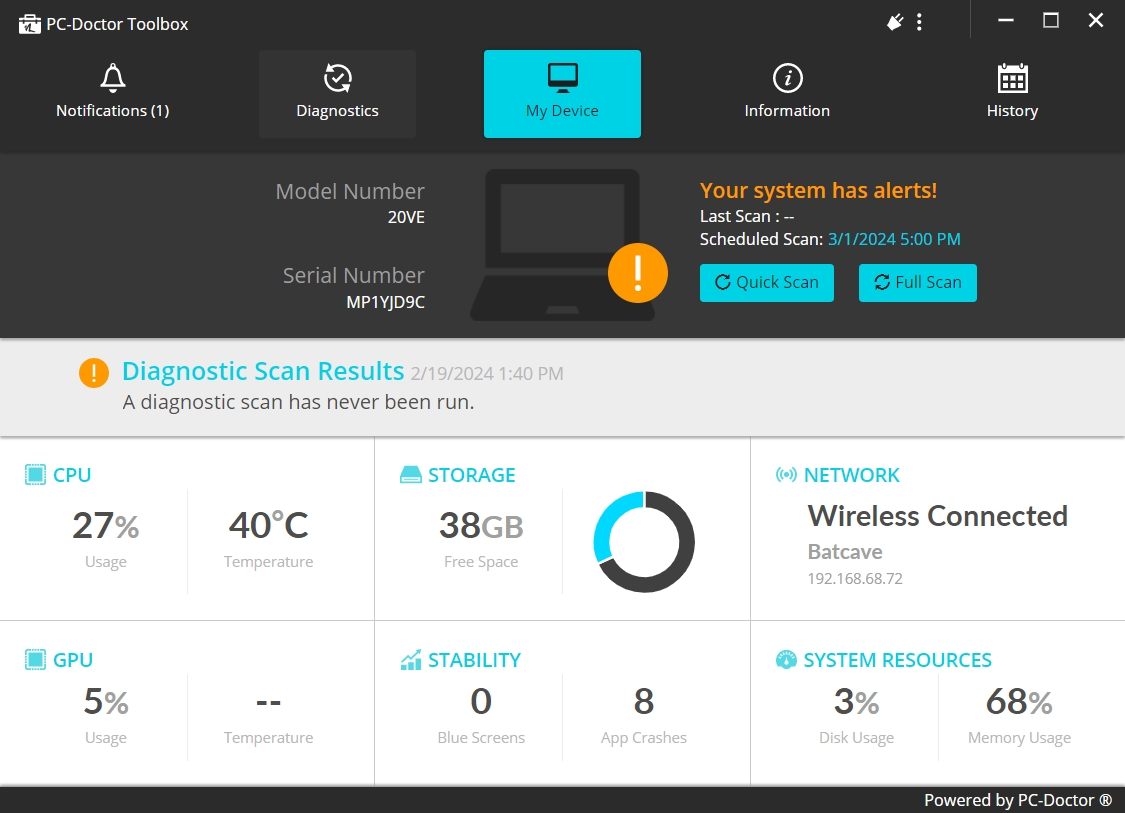
My Device serves as the default screen, presenting critical data about your computer’s performance, including CPU and GPU usage and temperature, available space, system crash counts, connectivity status, network name, or disk and memory usage. From this screen, you can initiate Quick or Full Scans to assess your PC’s health.
Diagnostics Section
The Diagnostics tab gives you access to System Scans, Blue Screen Troubleshooter, Windows Tools and Scan Results.
System Scans
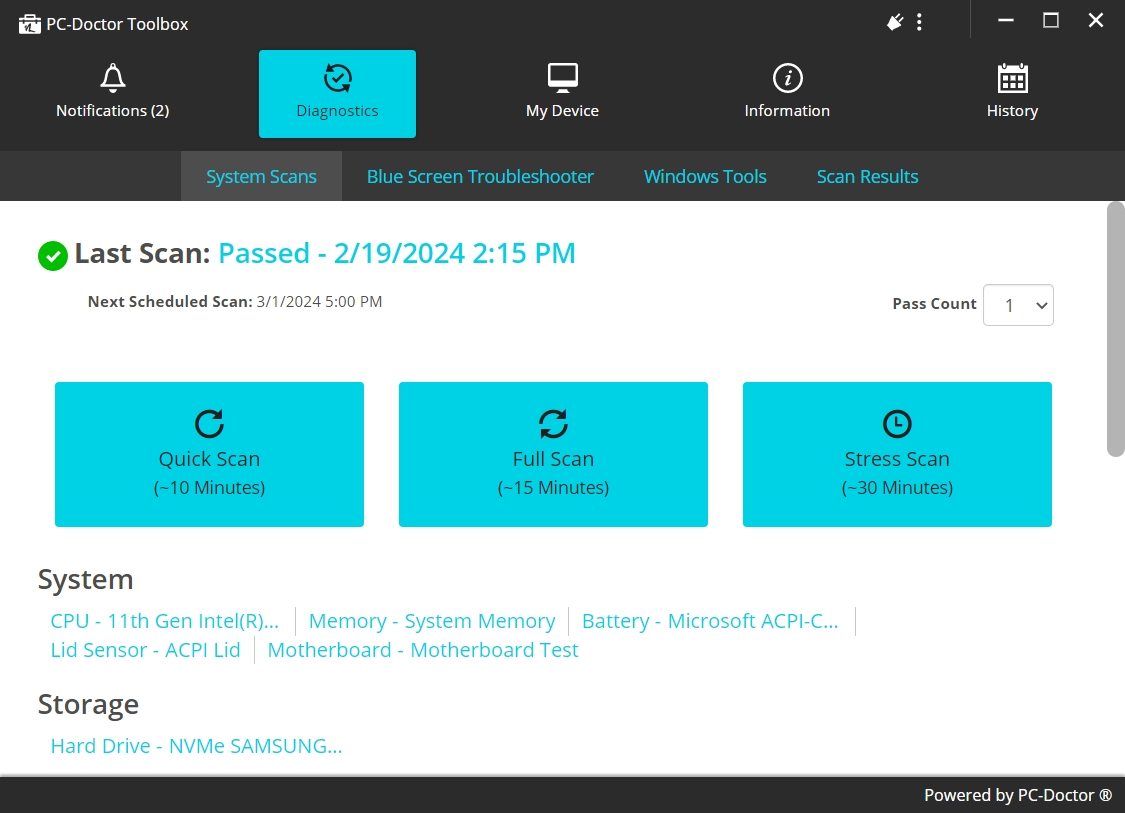
In the System Scans area of PC Doctor Toolbox, you can choose from Quick Scan, Full Scan and Stress Scan as well as adjust the number of passes. Here’s what you need to know about this scan modes:
- Quick Scan takes around 10 minutes and checks the most essential components of your computer. The focus is to identify glaring issues that can be quickly detected. Quick scans are ideal for routine maintenance checks or when you’re experiencing minor issues and need a quick assessment.
- Full Scan is more comprehensive and thorough than Quick Scan, taking about 15 minutes to complete. It’s designed to meticulously check every component of your computer for issues. Full scans are recommended when you need a detailed overview of your system’s health, particularly if you suspect hardware issues or before performing significant system upgrades or repairs.
- Stress Scan is the most intensive type of scan, usually lasting around 30 minutes or more, depending on the system and settings. It aims to test the stability and endurance of your system under heavy load conditions. Stress cans are particularly useful for identifying overheating issues, testing new hardware, overclocking stability or ensuring that the system can handle prolonged periods of high demand.
Blue Screen Troubleshooter
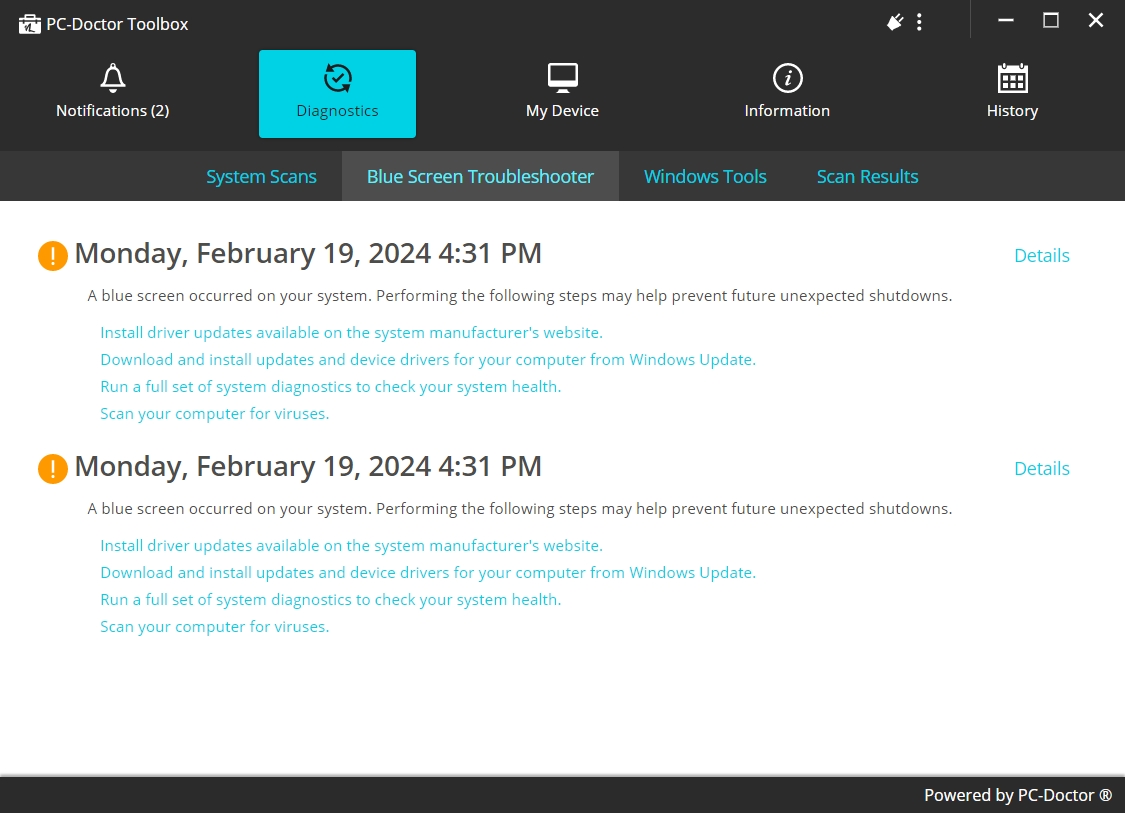
The Blue Screen Troubleshooter within PC Doctor Toolbox is a specialized diagnostic tool designed to address the infamous Blue Screen of Death (BSOD) errors that Windows users may encounter. BSODs are critical errors that cause the operating system to halt and display a blue screen with diagnostic information. They can be triggered by a variety of issues, including hardware failures, driver conflicts and system corruption.
The troubleshooter aims to simplify the process of diagnosing and resolving these errors. It records and analyzes BSOD errors to reveal relevant information about the stop code, which can give clues about the root cause of the crash. Next, it recommends solutions based on the analysis of the BSOD error codes and the context in which they occurred. These suggestions may include updating drivers, running hardware diagnostics, checking for system updates or performing specific repairs.
A noted limitation of the Blue Screen Troubleshooter is that it may offer a generic set of suggestions that do not vary much depending on the error code. This means that while the advice provided is a good starting point, some BSOD issues may require more in-depth investigation and troubleshooting beyond the initial recommendations.
Windows Tools
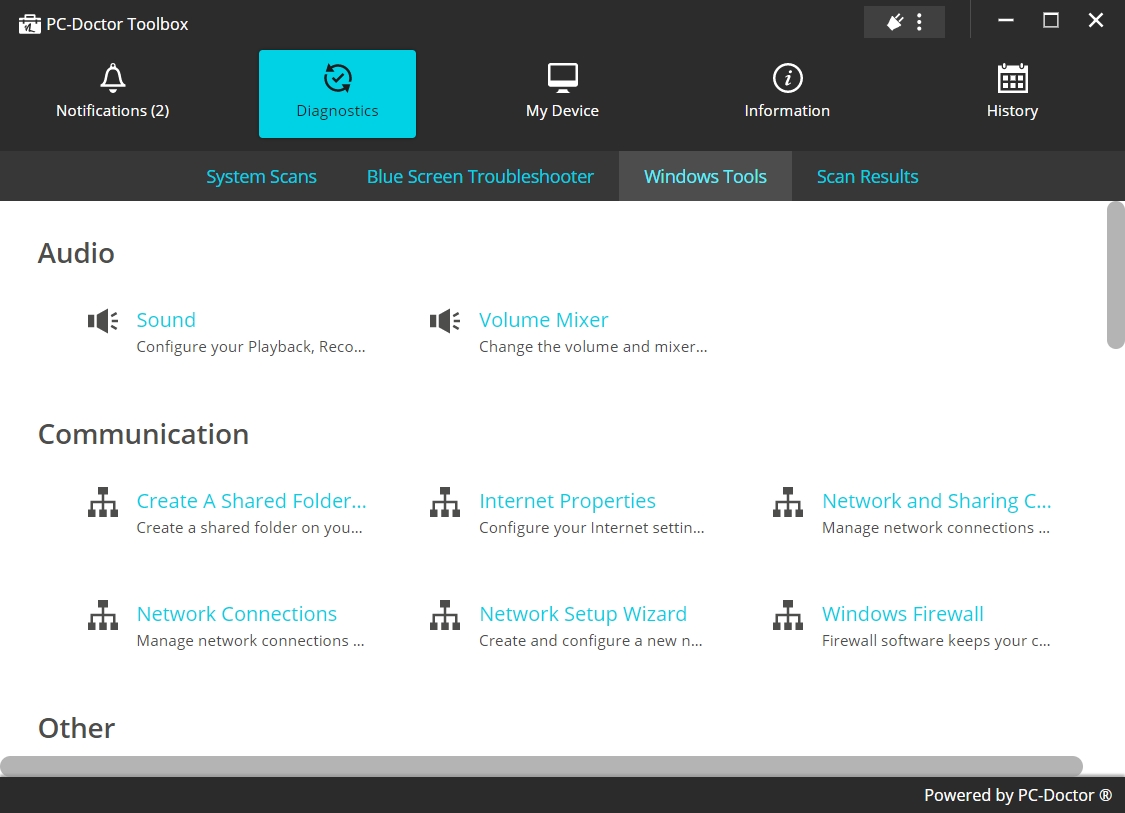
The Windows Tools section of PC Doctor Toolbox allows you to quickly navigate to essential system utilities for troubleshooting and setting adjustments. For example, you can go to audio, communication and other system utilities, such as the volume mixer, internet properties, game controllers or Windows firewall.
Scan Results
In the Scan Results area of PC Doctor Toolbox, you can review details about the last scan and save an HTML report.
Notifications
The Notifications area of PC Doctor Toolbox shows an overview of all received alerts, such as operating system and application crashes, including their date and time. You can click an event to get more details, dismiss events and learn more in the Information section.
Information
In the Information tab of PC Doctor Toolbox, you can access the Overview, App Crashes and Advanced sections. Here’s what you need to know about them: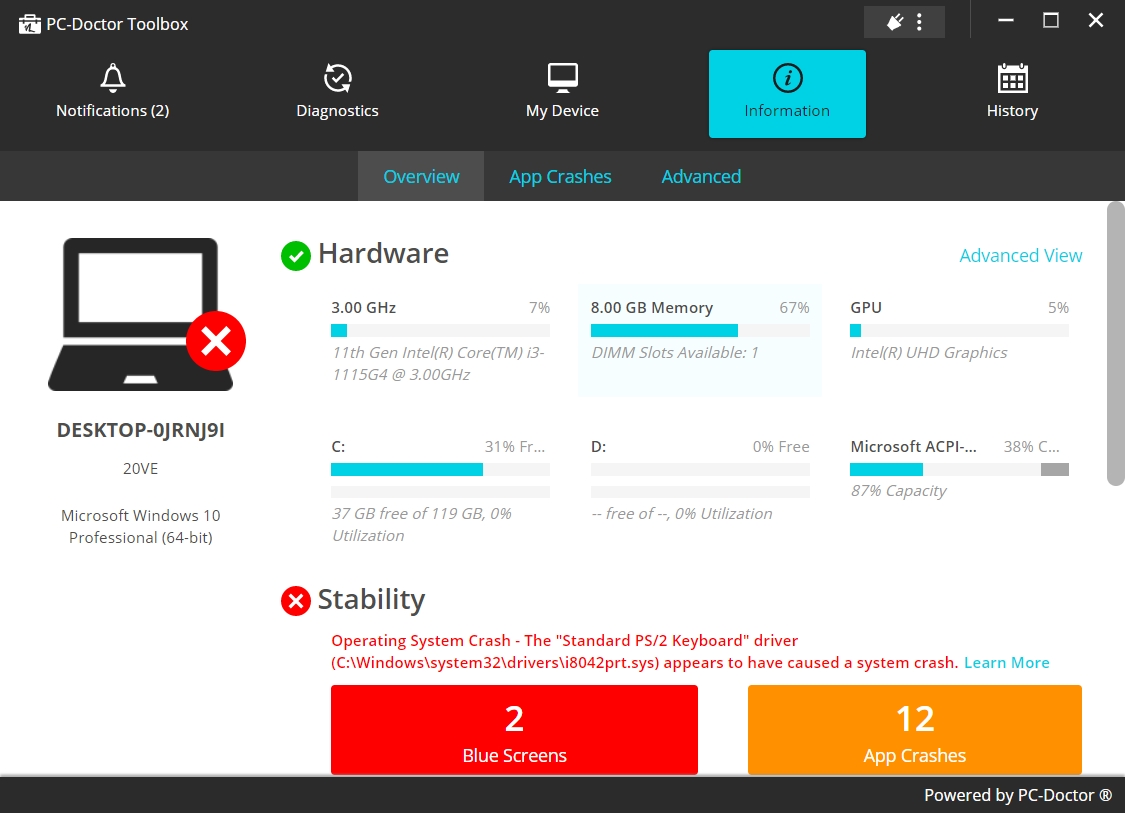
- Overview: Shows general info about your computer, such as GPU and memory usage, stability details (number of BSOD errors, total app crashes), security (e.g. if your antivirus is updated).
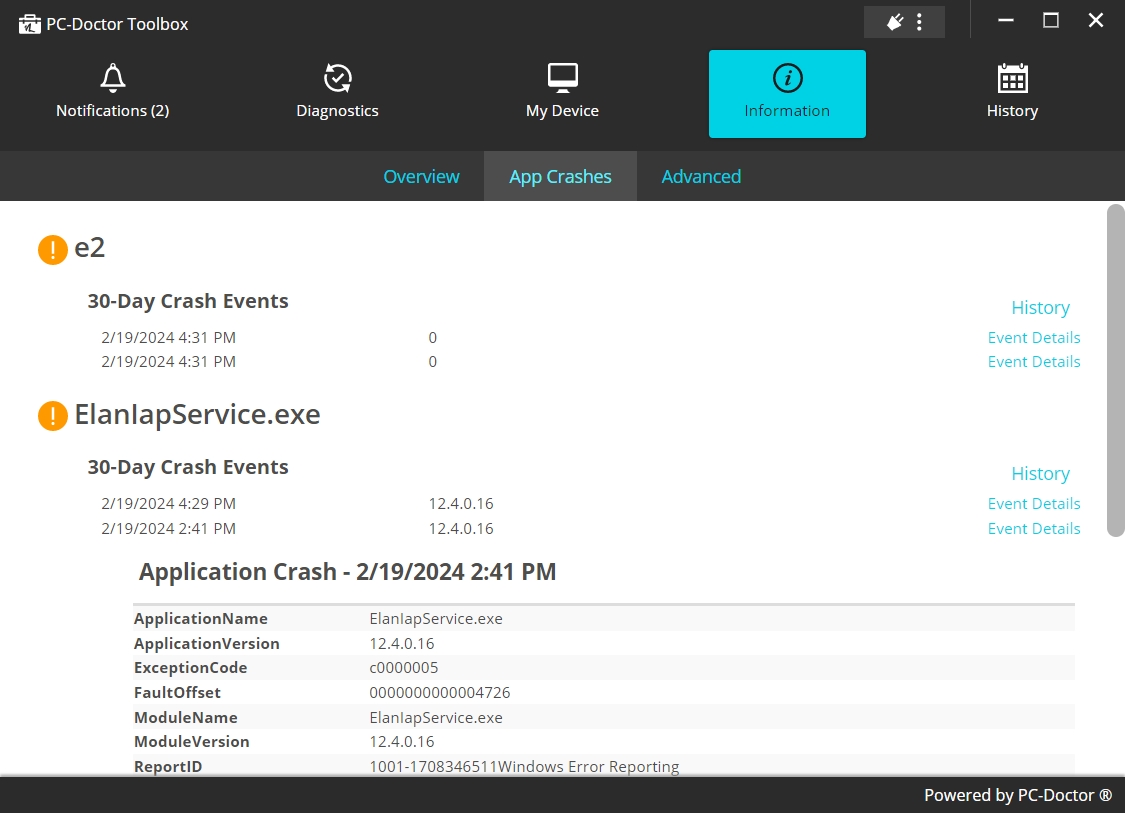
- App Crashes: Displays the most recent application crashes, including timestamps and other event details.
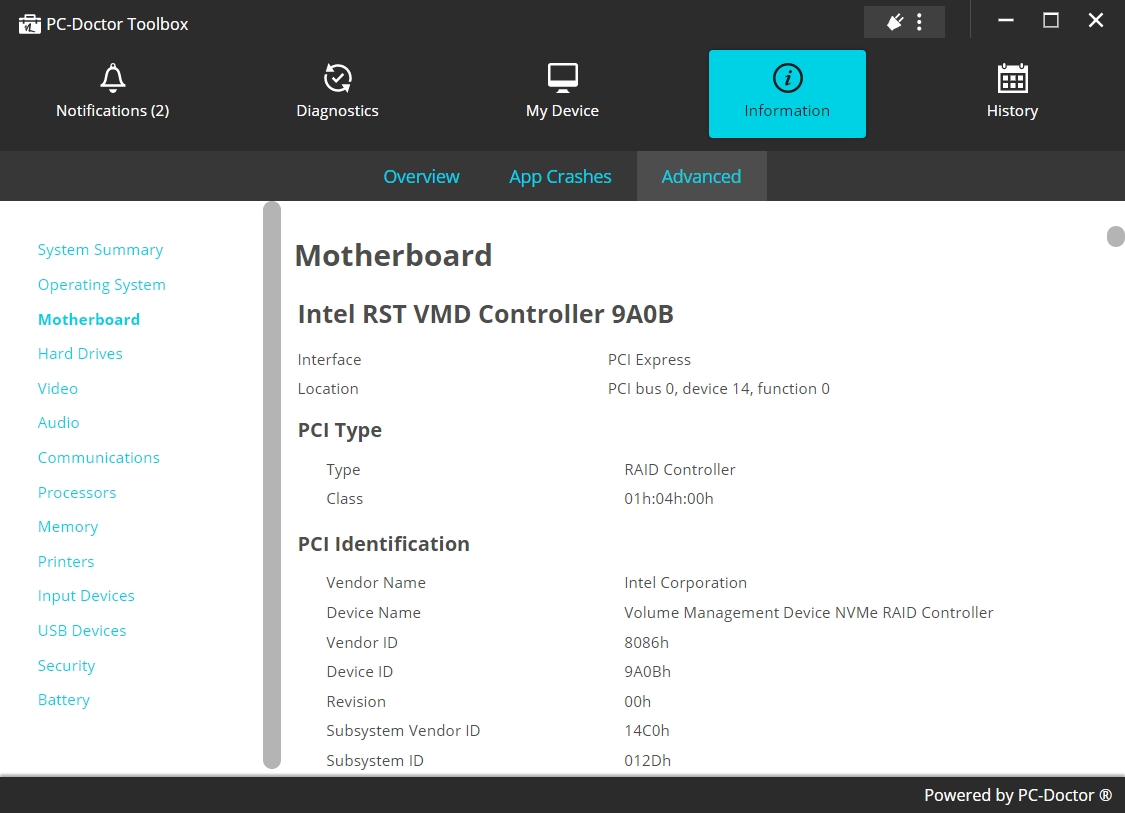
- Advanced: View information and create HTML reports about your operating system, motherboard, hard drives, audio, video, communications, processors, memory, printers, input devices, USB devices, security and battery.
History
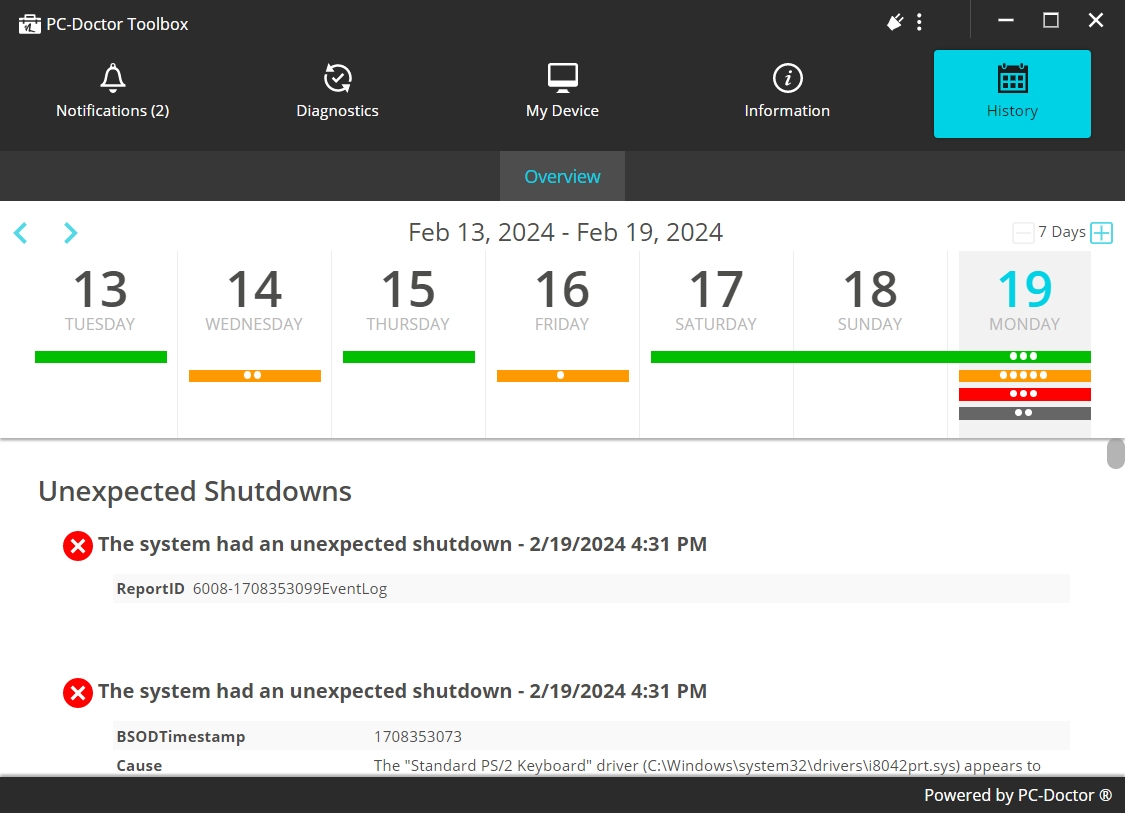
In the History part of PC Doctor Toolbox, you can review details about past events and diagnostics, such as unexpected shutdowns, application crashes or changes.
Other Settings
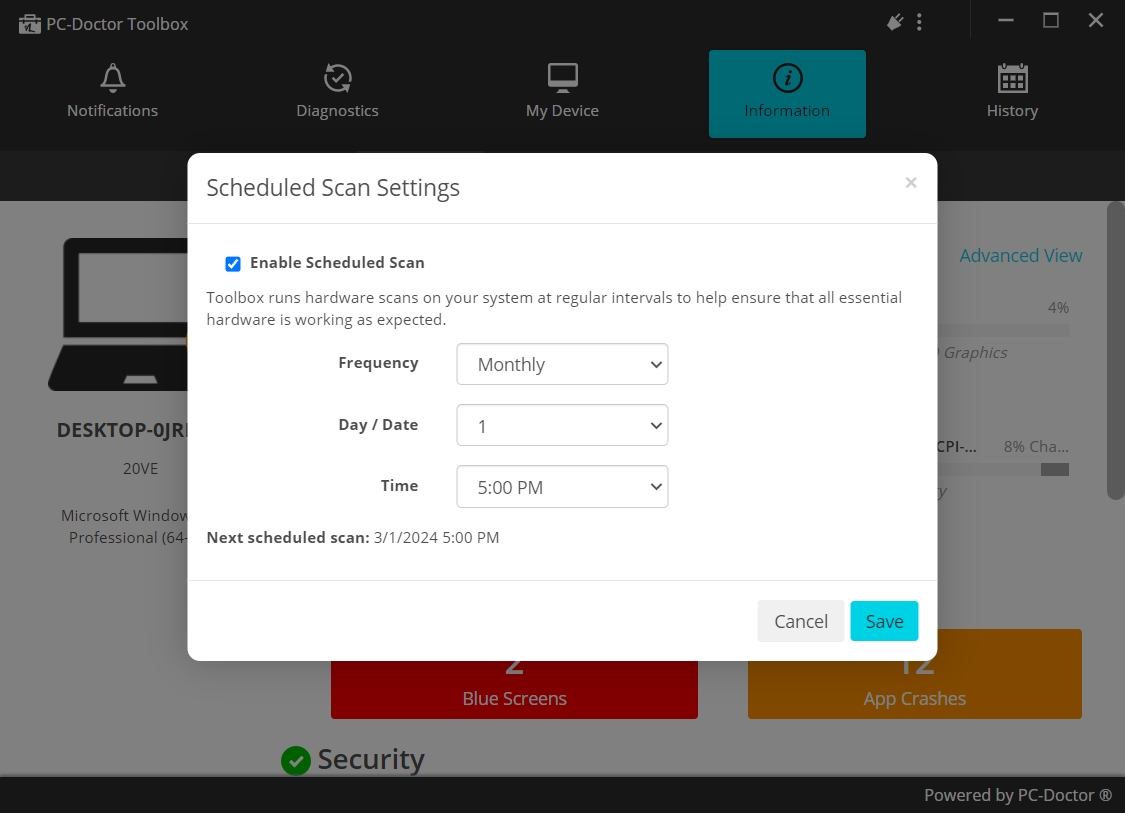
The interface of PC Doctor Toolbox is multilingual. Additionally, the application runs in the background, so it won’t interrupt your other computer activities. Nevertheless, during scans, it is recommended to close all running applications and leave the PC unattended to ensure accurate readings. On the bright side, you can take advantage of scheduled scans to let PC Doctor run regular scans when you don’t need to use your computer.
How to Use PC Doctor Toolbox
- Start with My Device: Launch the software to view the My Device screen and observe real-time stats such as CPU/GPU usage and temperature, storage and network information.
- Run diagnostics: Go to the Diagnostics screen and select the type of scan you want to perform – Quick Scan for a brief check, Full Scan for a comprehensive review, or Stress Scan to test system stability under load. You can customize the scan by adjusting the number of passes or by focusing on specific components.
- Use the Blue Screen Troubleshooter: If you have recently experienced BSOD errors, access the Blue Screen Troubleshooter in the Diagnostics section to get more details and find solutions.
- Access Windows tools: Go to the Windows Tools subsection of Diagnostics to quickly navigate to essential system utilities for troubleshooting and settings adjustments.
- Review information and history: Visit the Information tab to check Overview for a snapshot of your system’s health, look App Crashes for recent application issues, use Advanced to generate detailed reports on system components or visit History to see a log of past diagnostics and system events.
Pros and Cons
Pros
- Offers a wide range of scans for comprehensive system diagnostics
- Real-time monitoring for CPU/GPU usage and temperature
- Scheduled scans at convenient times
- Blue Screen Troubleshooter for debugging Windows stop codes
- Generates comprehensive HTML reports for scans, providing in-depth insights into system health and issues
- Free for personal use when partnered with a free Toolbox Remote account
Cons
- The Blue Screen Troubleshooter might offer generic solutions that don’t vary much with the error type, potentially limiting its usefulness in complex scenarios.
- The wide range of features and detailed reports might overwhelm users who are not tech-savvy
Conclusion
To summarize, PC Doctor Toolbox is a versatile and user-friendly tool for monitoring and diagnosing computer hardware and system performance. Its comprehensive range of features makes it suitable for both casual users and IT professionals. By following the steps outlined in this review, users can effectively leverage PC Doctor Toolbox to maintain and optimize their computers.