

Speccy is a free system information tool developed by Piriform, the same company behind the popular CCleaner software. It provides detailed information about the hardware and software components of a computer system. In this article, we will review the features and functionality of Speccy, how to use it, and discuss its usefulness for both casual users and tech enthusiasts.
Features and Interface
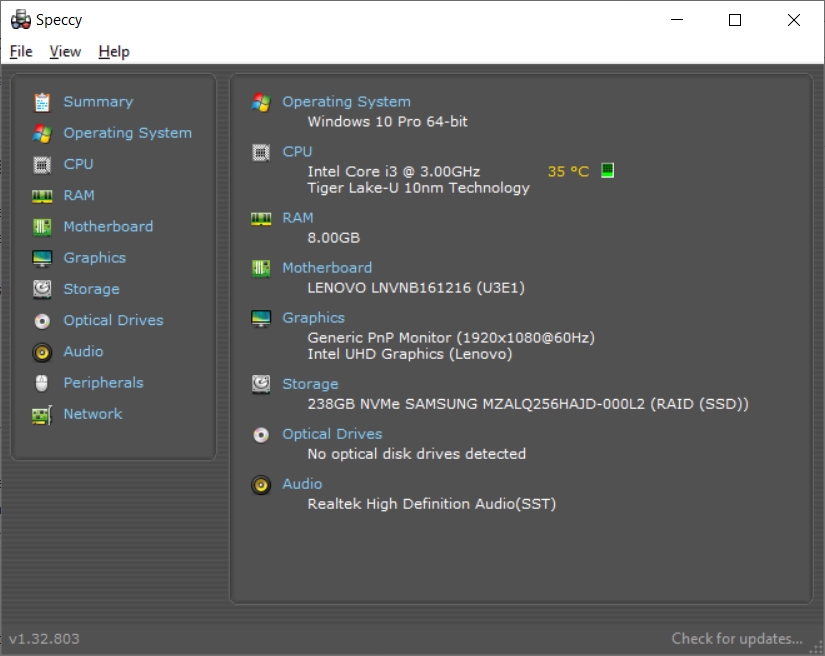
Speccy offers a simple and user-friendly interface that displays all the essential information about a computer system in a well-organized manner. Upon launching the application, users are presented with an overview of the system’s specifications, including the operating system, CPU, RAM, motherboard, graphics card, storage devices, and more. Each component is accompanied by detailed information such as model, manufacturer, temperature, and clock speed.
One of the standout features of Speccy is its ability to provide real-time monitoring of hardware temperatures. This feature is particularly useful for users who want to keep an eye on their system’s temperature to prevent overheating issues. Speccy also provides information about the S.M.A.R.T. status of hard drives, allowing users to identify potential issues before they become critical.
System Analysis and Benchmarking
In addition to providing detailed hardware information, Speccy also offers system analysis and benchmarking capabilities. Users can generate reports that provide a comprehensive overview of the system’s specifications, making it easier to diagnose and troubleshoot hardware-related problems. The benchmarking feature allows users to compare their system’s performance with other similar systems, providing valuable insights for gamers and power users.
Customization and Privacy
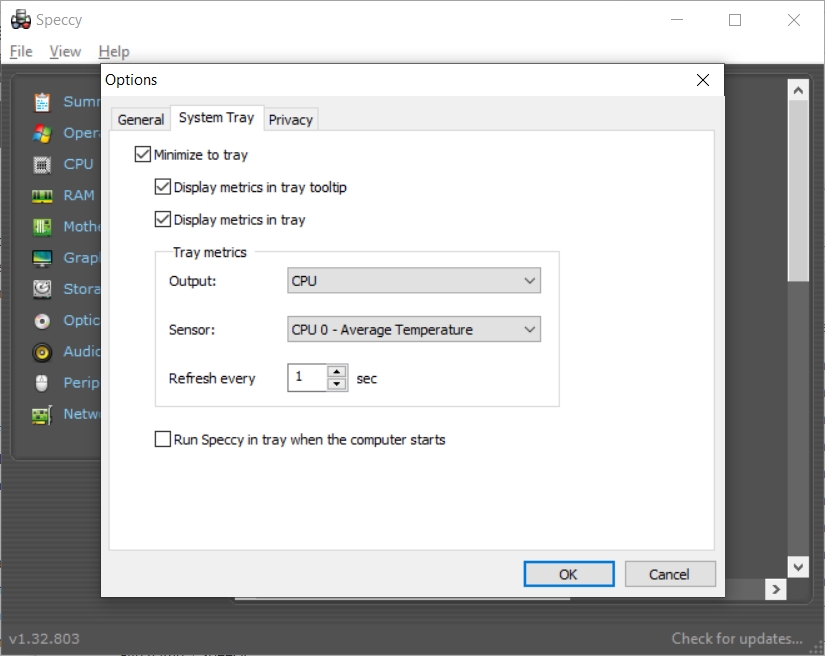
Speccy allows users to customize the information displayed in the interface by enabling or disabling specific components. This level of customization ensures that users only see the information that is relevant to them, making the interface less cluttered and easier to navigate.
In terms of privacy, Speccy does not collect any personally identifiable information. It only gathers hardware and software information from the user’s system, which is then displayed locally on the user’s computer. This commitment to privacy is reassuring for users who are concerned about their data being shared without their consent.
User Reviews and Testimonials
Speccy has received positive reviews from both users and technology experts. According to PCMag, Speccy is a “powerful system information tool” that provides “in-depth details about your hardware and software.” The review also praises the software’s user-friendly interface and real-time monitoring capabilities.
LifeWire describes Speccy as a “free sysinfo tool” that is “easy to use and provides detailed information about your computer’s hardware.” The review highlights the software’s ability to generate comprehensive reports and its usefulness for troubleshooting hardware issues.
How to Use Speccy
1. Download and install the app
Before you can start using Speccy, you need to download and install it on your computer. You can find the latest version of Speccy on the official website of CCleaner. Once you have downloaded the installer, follow the on-screen instructions to complete the installation process.
2. Launch Speccy
After the installation is complete, you can launch Speccy by double-clicking on its desktop icon or by searching for it in the Start menu. Once Speccy is open, you will see a user-friendly interface with various tabs representing different categories of information.
3. Gather hardware info
The first tab in Speccy is the “Summary” tab, which provides an overview of your computer’s hardware. Here, you can see information such as the operating system, CPU, RAM, motherboard, graphics card, and storage devices. This summary gives you a quick snapshot of your system’s specifications.
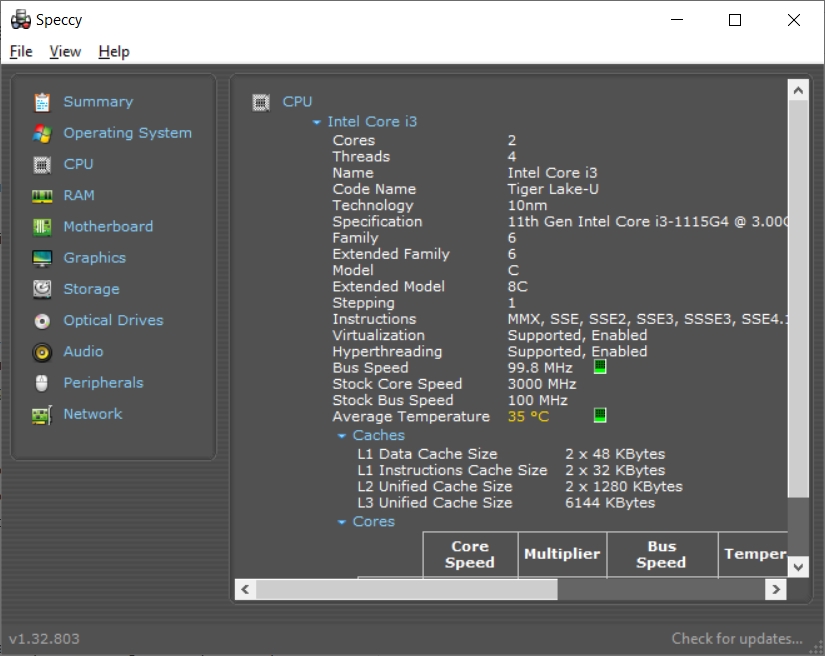
For more detailed information about a specific component, click on the corresponding category in the left-hand sidebar. For example, clicking on “CPU” will display detailed information about your processor, including its model, architecture, clock speed, and temperature.
4. Analyze software info
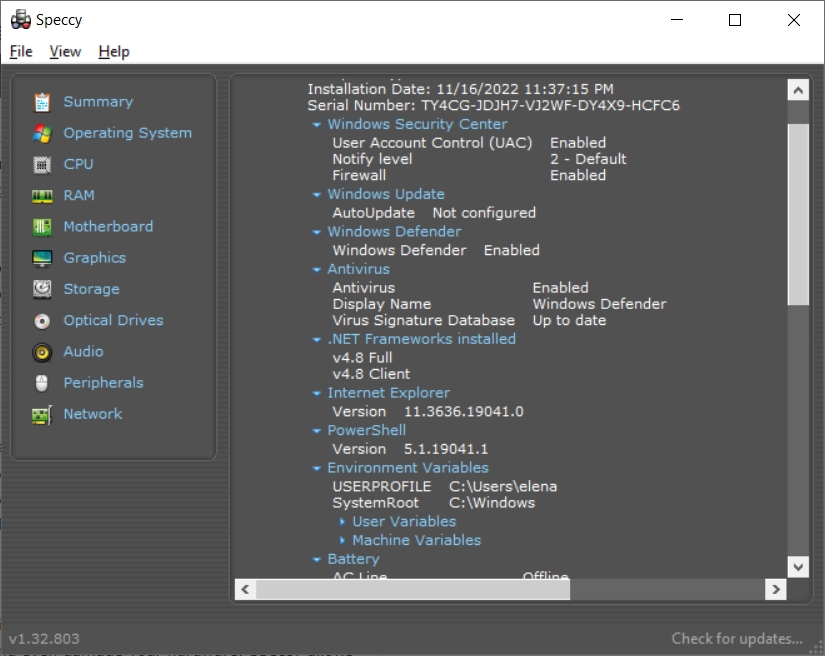
In addition to hardware information, Speccy also provides insights into your computer’s software. The “Operating System” tab displays details about your OS, including the version, installation date, and product key. The “Software” tab lists all the installed programs on your computer, allowing you to quickly identify and manage your software inventory.
5. Monitor system temps

One of the most useful features of Speccy is its ability to monitor system temperatures. Overheating can cause performance issues and even damage your hardware. Speccy allows you to keep an eye on the temperature of your CPU, GPU, motherboard, and other components in real-time. Monitoring temperatures can help you identify potential cooling problems and take appropriate action to prevent any damage.
6. Save and share reports
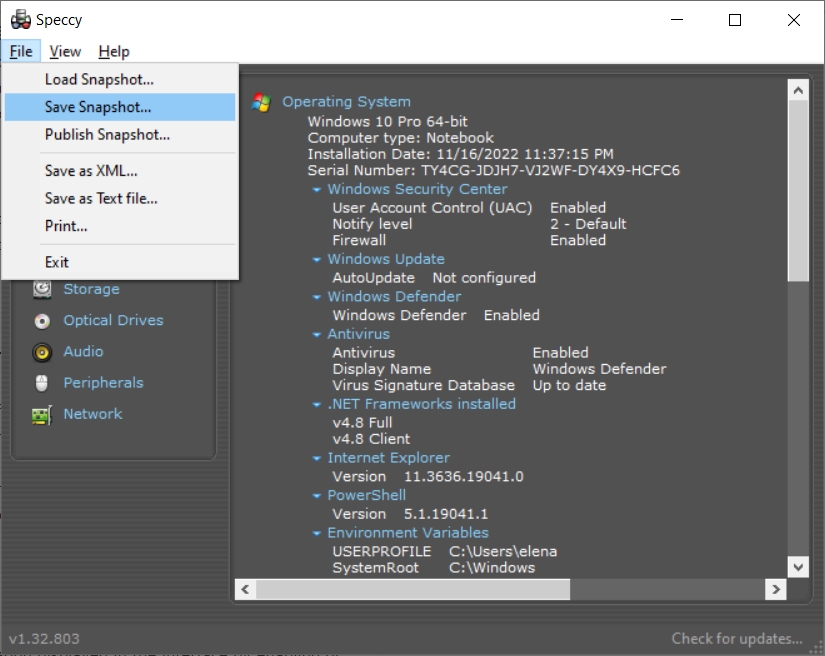
Speccy allows you to save a detailed report of your computer’s specifications in various formats, including text, XML, and HTML. Saving a report can be useful for future reference or when seeking technical support.
You can also share the report with others, such as system administrators or tech support personnel, to help them diagnose any issues you may be experiencing. To save a report, simply click on the “File” menu and select “Save Snapshot.” Choose the desired format and location to save the report on your computer.
Speccy Test Case
One of the key features of Speccy is its ability to monitor and display real-time temperature readings of various hardware components. However, there have been some reported issues with the accuracy of temperature readings in certain cases. This test case discusses the potential implications of inaccurate temperature readings.
The Problem
One of the main concerns raised by users is the inaccurate temperature readings reported by Speccy, particularly for hard disk drives (HDDs). Several users have reported that Speccy displays significantly lower temperatures for their HDDs compared to other monitoring tools. This discrepancy in temperature readings has raised concerns about the reliability of Speccy as a system monitoring tool.
User Experiences
On the CCleaner Community Forums, a user reported that Speccy was not showing the CPU temperature correctly on their system. Another user on Reddit warned about Speccy reporting wrong temperatures for HDDs, which could lead to incorrect assumptions about the health of the drives. These user experiences highlight the potential issues with relying solely on Speccy for temperature monitoring.
Possible Causes
The inaccurate temperature readings in Speccy could be attributed to various factors. One possible cause is the lack of compatibility with certain hardware configurations. Speccy relies on the hardware’s built-in sensors to gather temperature data, and if these sensors are not properly detected or supported by Speccy, it can lead to incorrect readings.
Another factor could be the software’s inability to interpret the temperature data correctly. Speccy may not have the necessary algorithms or calibration methods to accurately translate the raw sensor data into meaningful temperature readings. This could result in discrepancies between Speccy’s reported temperatures and those from other reliable monitoring tools.
Implications
The inaccurate temperature readings in Speccy can have several implications for users. Firstly, it can lead to incorrect assumptions about the health and performance of hardware components. Users who rely solely on Speccy for temperature monitoring may not be aware of potential overheating issues, which can lead to hardware failures or performance degradation.
Secondly, the inaccurate temperature readings can affect troubleshooting efforts. When diagnosing hardware issues, accurate temperature readings are crucial in identifying potential problems. If Speccy provides misleading temperature data, it can misguide users in their troubleshooting process, leading to wasted time and effort.
Alternatives and Solutions
Given the potential issues with Speccy’s temperature readings, it is advisable for users to consider alternative system monitoring tools. There are several reliable and widely-used software options available that provide accurate temperature readings, such as HWMonitor, Open Hardware Monitor, and Core Temp. These tools have been extensively tested and are known for their accuracy and compatibility with a wide range of hardware configurations.
If users still prefer to use Speccy for other system information purposes, it is recommended to cross-reference the temperature readings with those from other reliable monitoring tools. This can help validate the accuracy of Speccy’s temperature data and provide a more comprehensive view of the system’s health.
Conclusion
Speccy is a reliable and user-friendly system information tool that provides detailed information about a computer’s hardware and software components. Its real-time monitoring capabilities, system analysis features, and customization options make it a valuable tool for both casual users and tech enthusiasts. With positive reviews and testimonials from users and experts, Speccy is a recommended choice for anyone looking to gain a deeper understanding of their computer system.