

Improving your laptop’s battery life on Windows 10 offers numerous benefits, enhancing both your device’s functionality and your overall user experience. Here are some of the key advantages:
- Use your laptop anywhere for longer without needing to recharge.
- Fewer interruptions from a dying battery means you can work more efficiently.
- Better battery management extends its lifespan, saving money on replacements.
- Using less power and fewer battery replacements is better for the environment.
- Proper battery care can prolong the overall life of your laptop.
- A longer-lasting battery is reliable during power outages or when you can’t access a power outlet.
- Less reliance on power cords reduces clutter and potential tripping hazards.
- Knowing your battery will last through long meetings or travel is reassuring.
To extend your laptop’s battery life on a Windows 10 device, you can try the following methods.
| Strategy | Description | Benefit |
|---|---|---|
| Check battery health | Use Command Prompt to generate a battery health report. This helps in monitoring capacity and cycle count. | Ensures efficient battery usage |
| Dim screen | Reduce screen brightness through display settings or brightness keys. | Significantly saves battery power |
| Optimize power settings | Select a power plan like Battery Saver, Better Battery, etc., from the battery icon in the system tray. Customize settings to reduce power consumption. | Balances performance with power saving |
| Use hibernate instead of sleep | Saves the current state to the hard drive and powers off completely, using no battery power. | Extends battery life during non-use |
| End resource-intensive processes | Use Task Manager to close processes that consume a lot of power. | Reduces unnecessary power drain |
| Turn off background apps | Disable apps that run in the background from Settings > Privacy. | Minimizes passive battery usage |
| Optimize startup programs | Use Task Manager to disable non-essential startup applications. | Reduces CPU and RAM usage at startup |
| Update software and drivers | Regularly update OS, applications, and drivers for efficiency enhancements and bug fixes. | Improves overall system and battery performance |
| Use battery saving features in browsers | Enable power-saving modes in browsers, limit tabs, and disable unnecessary extensions. | Reduces browser’s power consumption |
| Limit use of multimedia | Avoid or limit streaming and gaming; lower streaming quality. | Reduces high resource and power demands |
| Reduce multitasking | Close unnecessary applications, limit browser tabs, and focus on single tasks at a time. | Decreases CPU, RAM, and GPU workload |
| Regularly defragment your hard drive | (For HDDs) Defragment your drive to organize data efficiently, reducing read/write head movements. | Improves efficiency, slightly saving power |
| Opt for SSD over HDD | Use SSDs for their efficiency, as they consume less energy with no moving parts and faster data access. | Improves battery life due to lower power consumption |
| Disconnect peripherals | Unplug peripherals when not in use, especially those drawing significant power. | Reduces external power drain |
| Avoid extreme temperatures | Use and store the laptop in moderate temperatures to prevent battery damage. | Preserves battery health and efficiency |
| Keep your laptop clean | Regular cleaning of vents and components to avoid dust accumulation and overheating. | Prevents efficiency loss due to overheating |
| Use original power adapters | Use the adapter provided with the laptop or manufacturer-approved ones for optimal charging. | Ensures proper and safe battery charging |
| Regularly calibrate your battery | Periodically calibrate by fully charging, discharging, and recharging the battery. | Maintains accuracy of battery charge indicator |
| Consider battery replacement | Replace the battery if it shows reduced life, physical damage, unexpected shutdowns, or charging issues. |
Read on for easy explanations and step-by-step instructions on each potential solution to increase laptop battery life.
1. Check Battery Health
Monitoring the health of your laptop’s battery is an essential aspect of maintaining its overall performance and longevity as well as running hardware diagnostics. The battery’s health indicates its capacity to hold a charge compared to when it was new. Over time, all batteries degrade and their capacity diminishes.
Windows provides a way to generate a battery report using the Command Prompt:
- Open Command Prompt as an administrator.
- Type
powercfg /batteryreportand press Enter. This command generates a battery health report saved as an HTML file, usually in the user directory.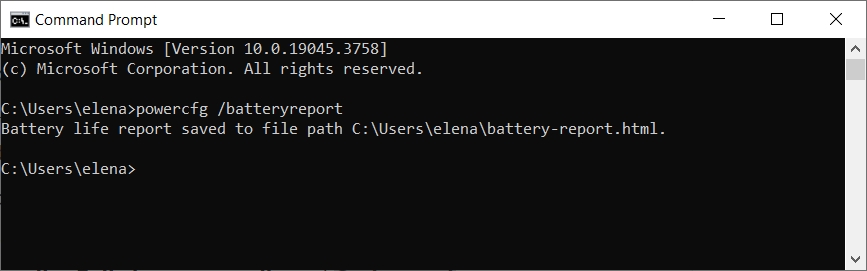
- Copy the generated user directory by selecting it and pressing Enter.
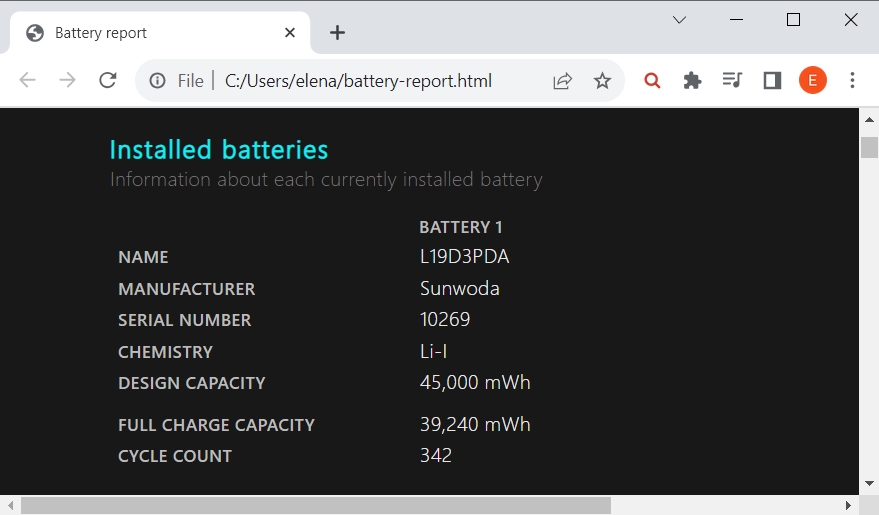
- Open your web browser and paste into the address bar to view the report. Check details such as Design capacity, Full charge capacity and Cycle count.
2. Dim Your Screen
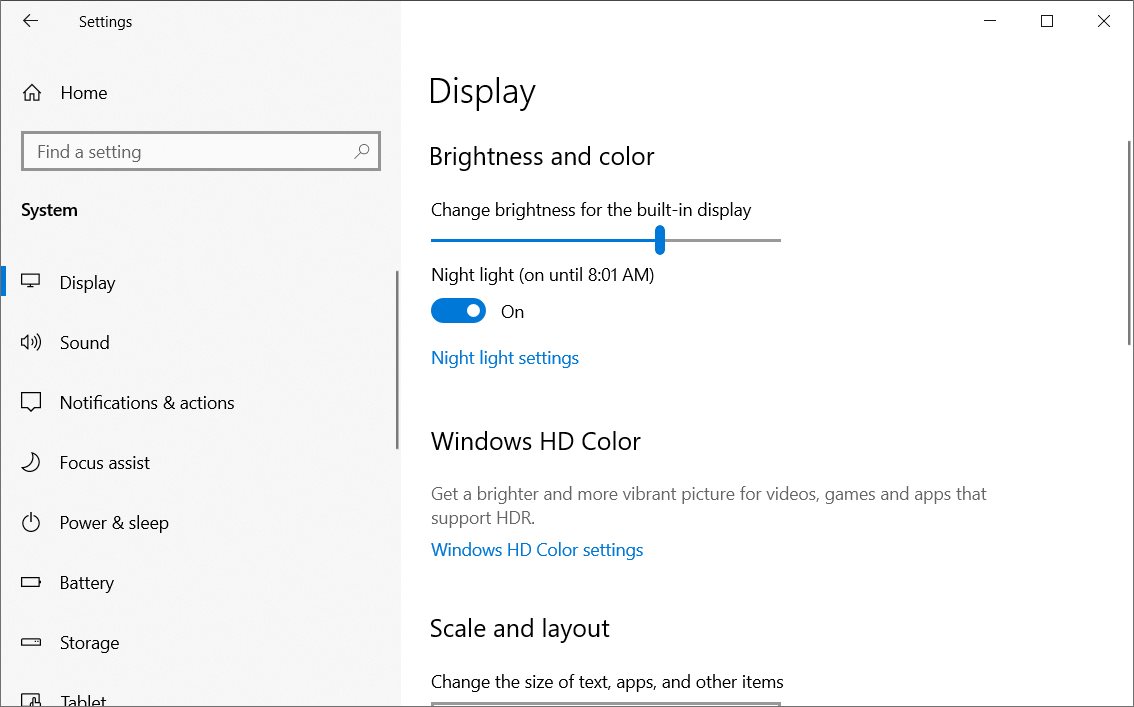
Reducing the screen brightness can significantly save battery power on Windows 10. You can adjust this in the display settings after opening Settings > System > Display to move the brightness slider. Or you can use the brightness keys on your device if available.
3. Optimize Your Power Settings
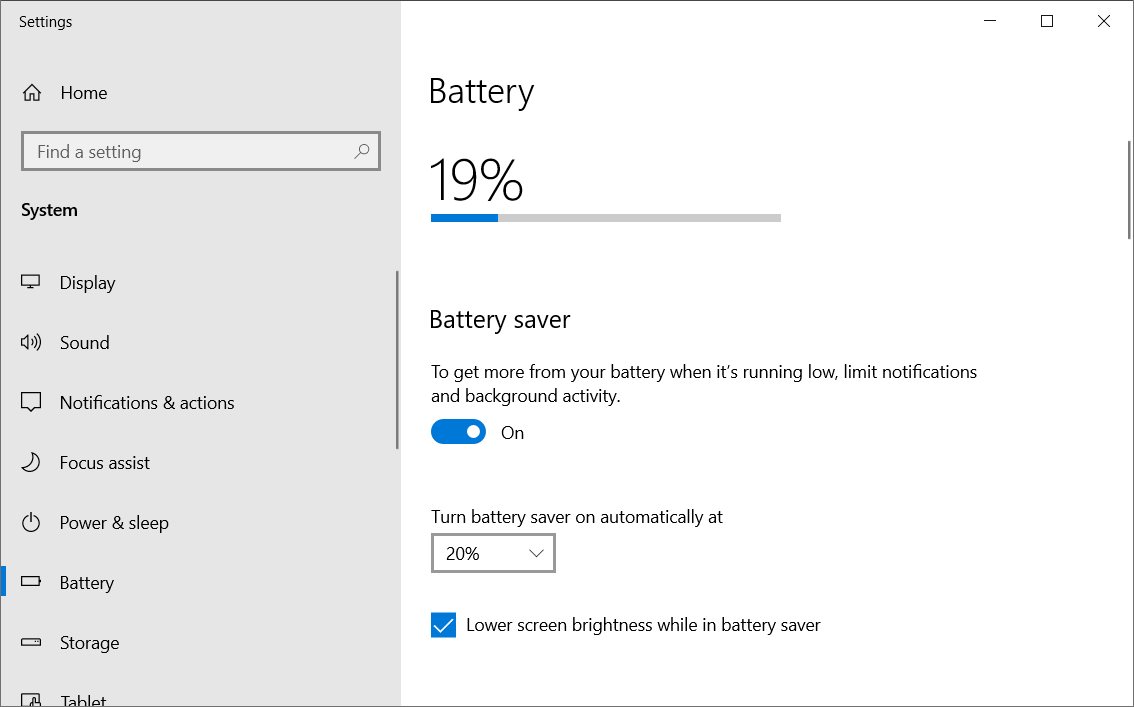
The Windows 10 power settings are essential for controlling how your laptop uses energy, which can significantly affect battery life. You can select a power plan, make the battery saver turn on automatically when the battery drops below a specific percentage, and more.
To select a power plan, click the battery icon in the system tray (lower-right corner) and set the slider to Battery Saver (best to preserve battery life), Better Battery, Better Performance, or Best Performance.
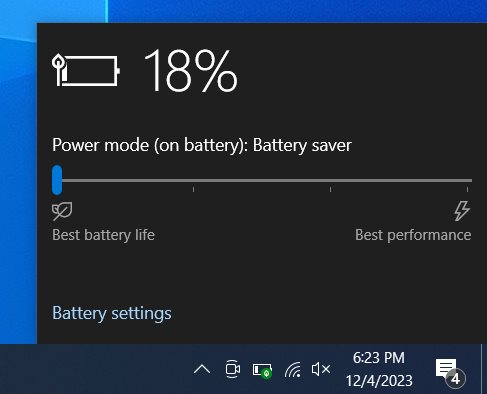
Click Battery Settings for more ways to increase your laptop’s battery life on Windows 10. You can limit notifications and background activity when the battery is running low, select the low battery level at which Windows will automatically turn on the battery saver, and auto-lower screen brightness while in battery saving mode.
4. Use Hibernate Instead of Sleep
Using hibernate instead of sleep mode can significantly impact your laptop’s battery life on Windows 10, especially when you’re not planning to use the laptop for an extended period. In Sleep mode, your laptop enters a low-power state. It saves the current state (including open files and running applications) to the RAM and keeps it powered, allowing for a quick resume. However, it continues to draw a small amount of power to maintain this state. Hibernate, on the other hand, saves the current state to the hard drive and then completely powers off the laptop. This means it uses no battery power while in hibernate mode. Like sleep, hibernate keeps all your open documents and running applications as they are, but since it saves to the hard drive, there’s no risk of losing data if the battery drains completely.
Follow these instructions to use hibernate mode on Windows 10:
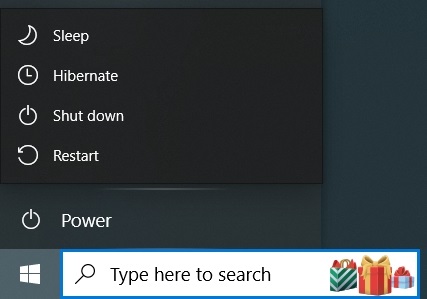
- You can choose Hibernate from the power menu. In Windows 10, this may require holding down the Shift key while clicking on the power icon to reveal the Hibernate option.
- If the hibernate button is not shown in the power menu, go to
Control Panel > Hardware and Sound > Power Options > System Settings, click Change settings that are currently unavailable (requires administrative rights), scroll down to Shutdown settings, tick the Hibernate box and click Save changes.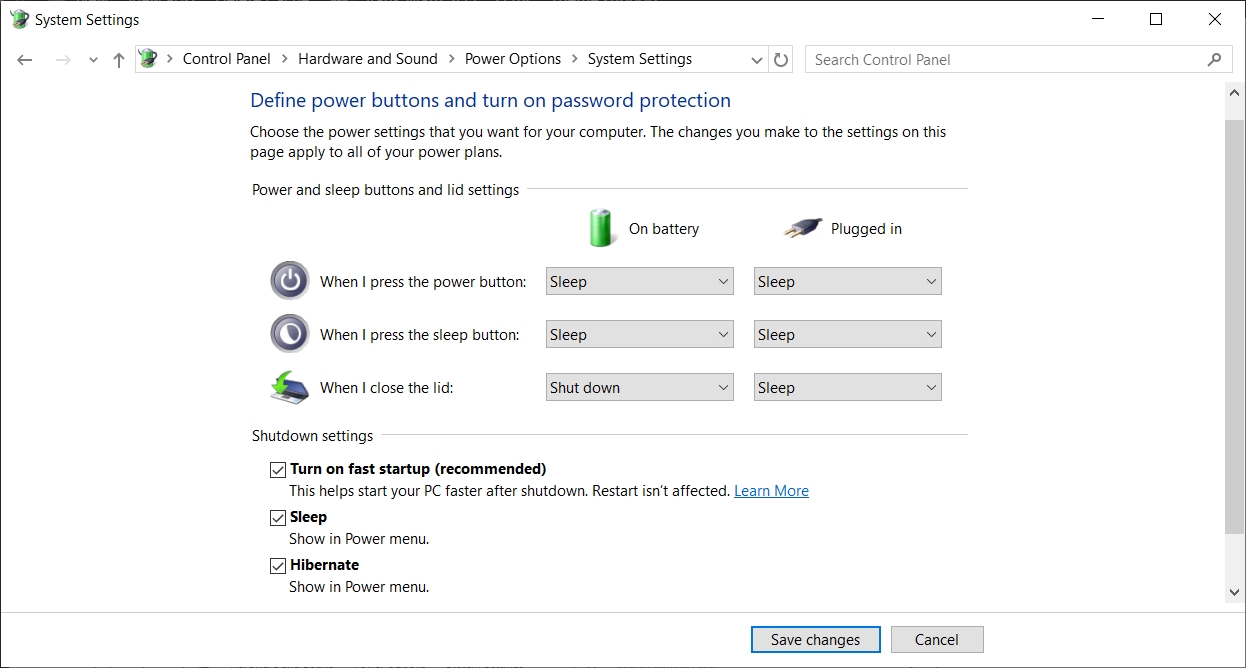
- To replace sleep with hibernate, go to
Control Panel > Hardware and Sound > Power Options > System Settings, select Hibernate in the On battery column next to When I press the sleep button and click Save changes. You can also set When I close the lid to Hibernate on battery mode.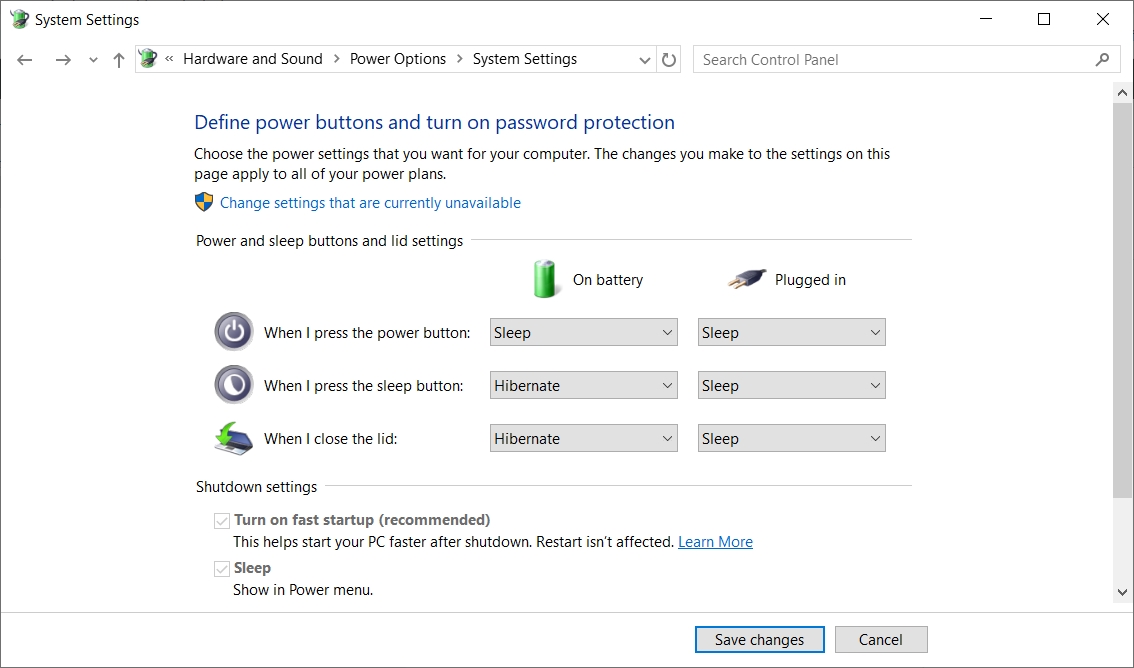
- To adjust the time for auto-hibernate, go to
Control Panel > Hardware and Sound > Power Options > Edit Plan Settings, click Change Advanced Power Settings, select a power plan, open Sleep > Hibernate after and set the number of minutes next to On battery.
Tips
- Resuming from hibernate takes slightly longer than from sleep because the system state needs to be read from the hard drive rather than the RAM.
- Hibernate mode uses disk space equivalent to your RAM size to store the system state. Ensure you have enough free disk space.
- For laptops with SSDs, the difference in resume time between sleep and hibernate is less noticeable compared to HDDs.
5. End Resource-Intensive Processes
Identifying and terminating resource-intensive processes is key to conserving battery life on Windows 10. These are processes that consume a lot of power, especially those related to graphics, computing-intensive tasks or network activities. For example, playing a video game puts a strain on the graphics card. While temporarily leaving your laptop unattended, it’s best to exit the game and terminate its processes to keep the battery lasting longer.
Here’s how to find and close resource-consuming processes using Task Manager to conserve laptop battery on Windows 10:
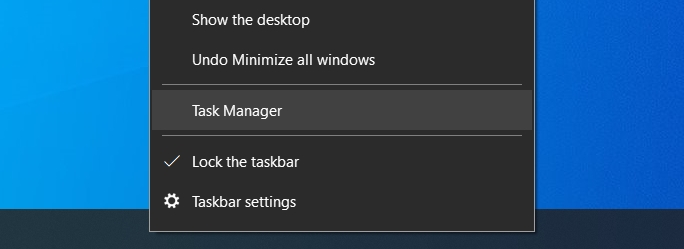
- Open Task Manager by right-clicking the taskbar and selecting Task Manager (or press Ctrl + Shift + Esc).
- The Processes tab shows a list of running applications and background processes, along with their CPU, memory, disk and network usage. Look for applications that are using a high percentage of your CPU or memory, as these are likely draining your battery faster. Click the CPU or Memory column to sort the processes and view the resource-intensives ones first.
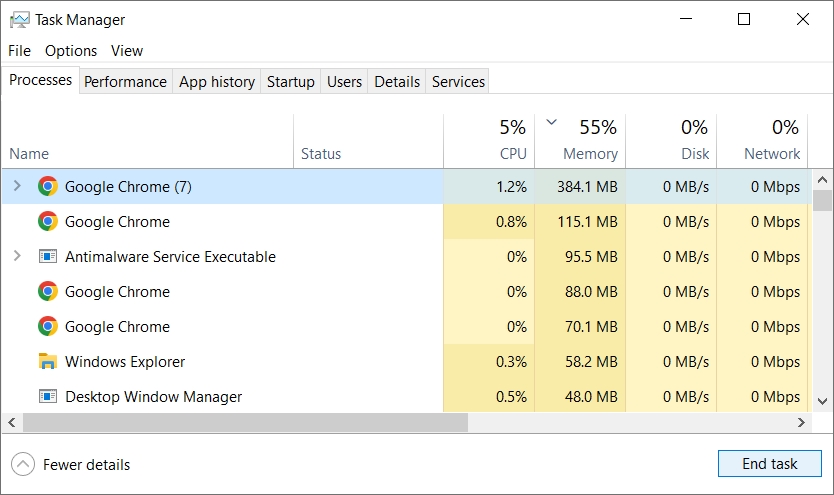
- Select a resource-intensive process and click End task to terminate it.
6. Turn Off Background Apps
Disabling background apps is vital in extending your laptop’s battery life on Windows 10. Background apps are applications that continue to run behind the scenes even when you’re not actively using them. They can perform various tasks like syncing data, checking for updates or sending notifications. Background apps can significantly impact battery life since they use processor cycles, memory and sometimes network bandwidth, all of which consume power.
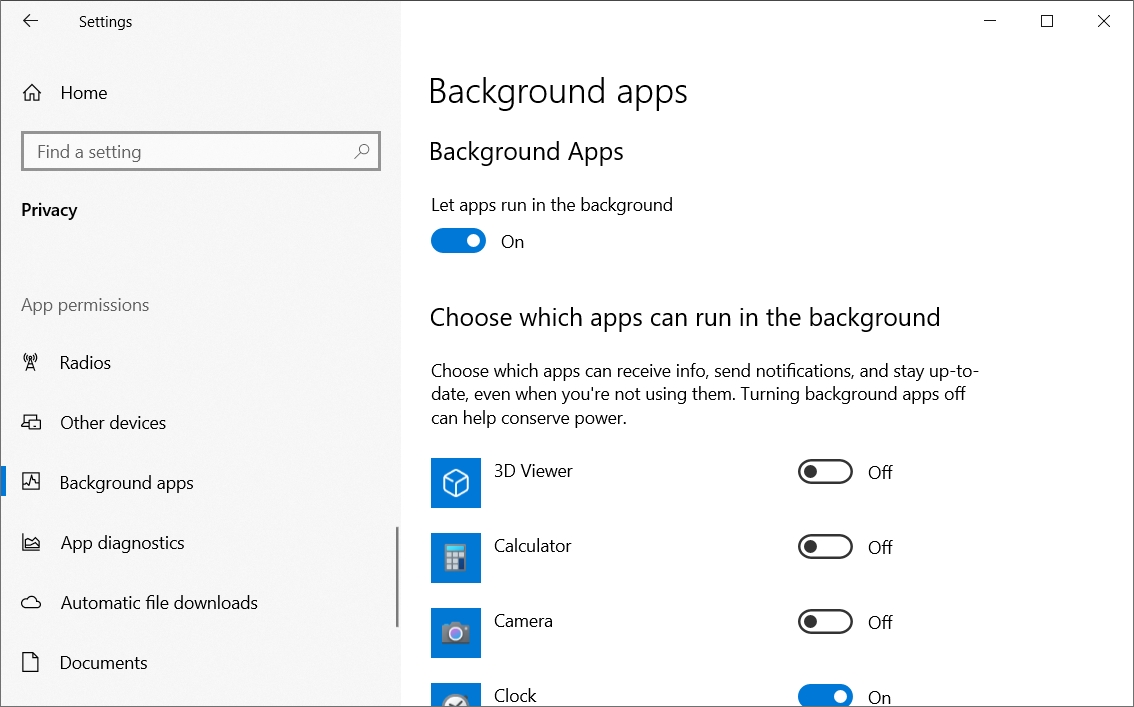
To disable background apps on Windows 10, go to Settings > Privacy > Background Apps. You’ll see a list of apps that run in the background, so toggle off the unnecessary ones.
Tips
- Periodically review the list of background apps since software installations or updates will sometimes reset preferences.
- When your laptop is in battery saver mode, many background activities are automatically reduced to save power.
- While disabling background apps can save battery, it might affect the functionality of some programs. For instance, if you disable background activity for a mail app, it may not fetch new emails unless opened.
7. Optimize Startup Programs
Optimizing startup programs is an important step in improving your laptop’s performance and extending its battery life on Windows 10. Startup programs are applications that are set to automatically launch when you boot up your computer. While some are essential, many are not and can unnecessarily consume system resources. The more programs running, the more CPU and RAM are used, which in turn increases power consumption. This can significantly impact battery life.
Here’s a detailed guide on how to disable startup programs on Windows 10 using Task Manager:
- Press Ctrl + Shift + Esc or right-click on the taskbar and select Task Manager to open it.
- Switch to the Startup tab to view a list of all autorun applications.
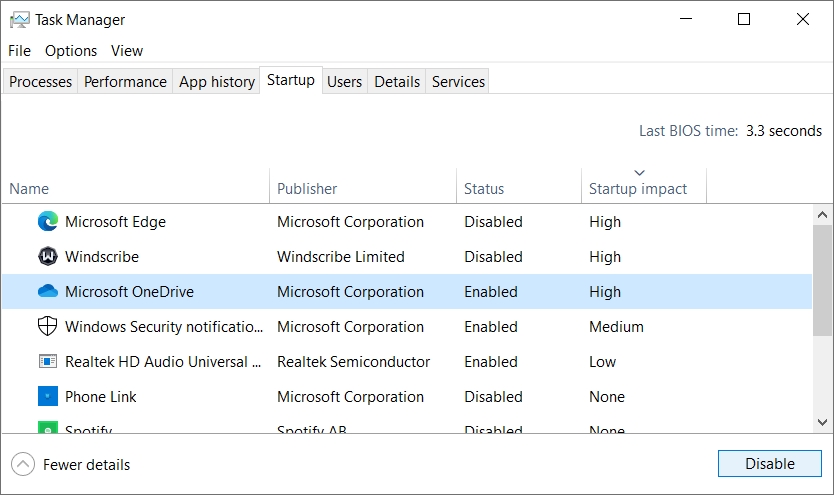
- Each program has an impact status such as None, Low, Medium or High, indicating how it affects your laptop’s startup time. Right-click on the applications that you do not need immediately upon startup and select Disable.
Tips
- Focus on disabling those with a High impact first, but be cautious not to disable essential system or security software.
- Periodically review your startup programs. New software installations might add themselves to the startup list.
- Ensure you understand what each program does before disabling it. Disabling essential services or drivers can lead to system instability.
- Remember that disabling a program from startup doesn’t prevent you from using it. You can always start any program manually when needed.
Learn more ways to manage startup applications on Windows 10.
8. Update Software and Drivers
Software updates, such as those related to the operating system, applications and drivers, can improve laptop battery life on Windows 10, as they often include optimizations that enhance the efficiency of your system’s power consumption. For example, OS updates often include power management improvements. Some OS updates specifically address bugs or inefficiencies that lead to rapid battery drain. Application updates can optimize how the software utilizes system resources like the CPU and RAM, putting less strain on the battery. Driver updates ensure that your hardware components, such as the graphics card, network adapters and chipset, work optimally with the operating system.
Follow these tips to effectively manage software updates to conserve battery life:
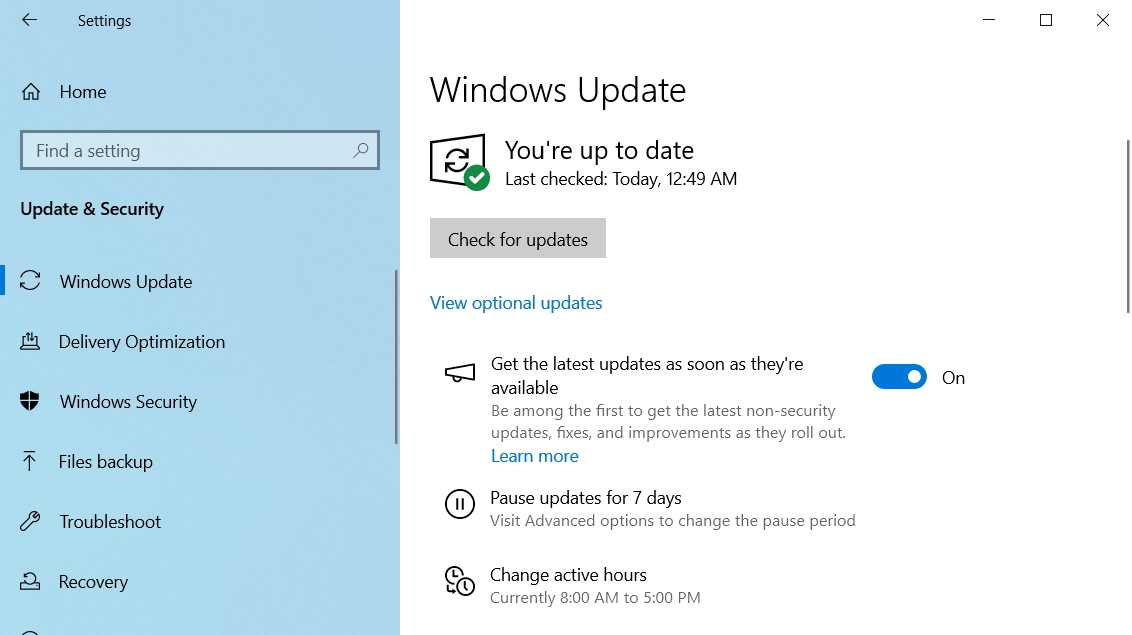
- OS updates: Ensure your operating system is set to receive and install updates automatically. Go to Settings > Update & Security and enable Get the latest updates as soon as they’re available.
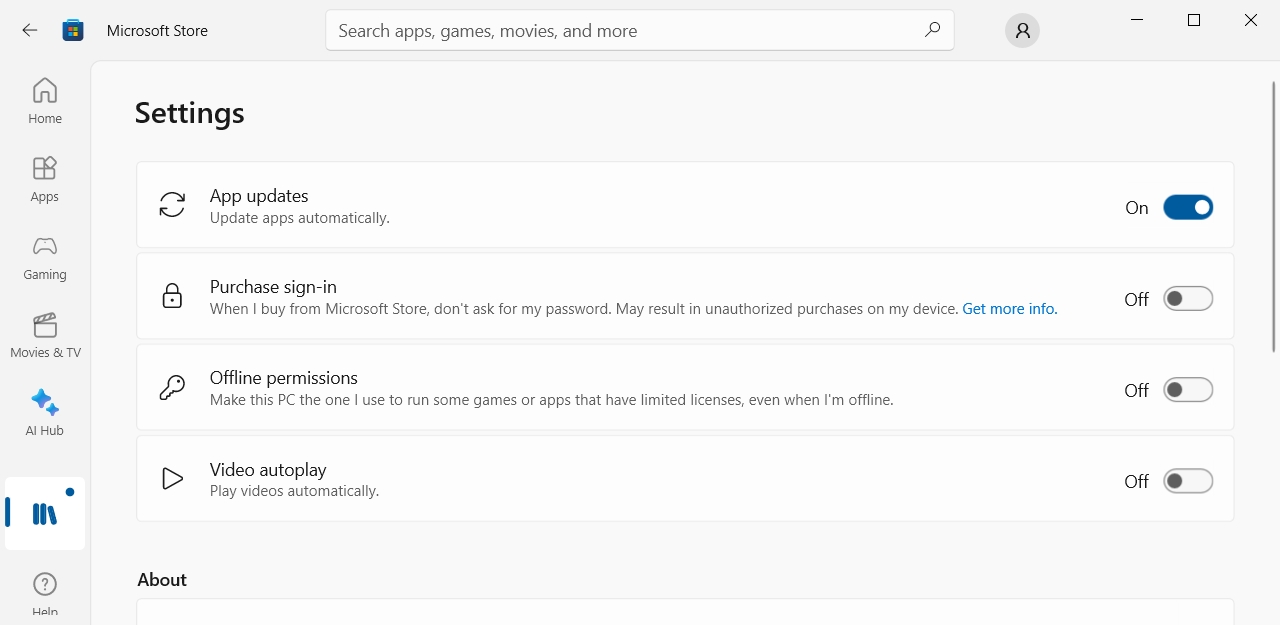
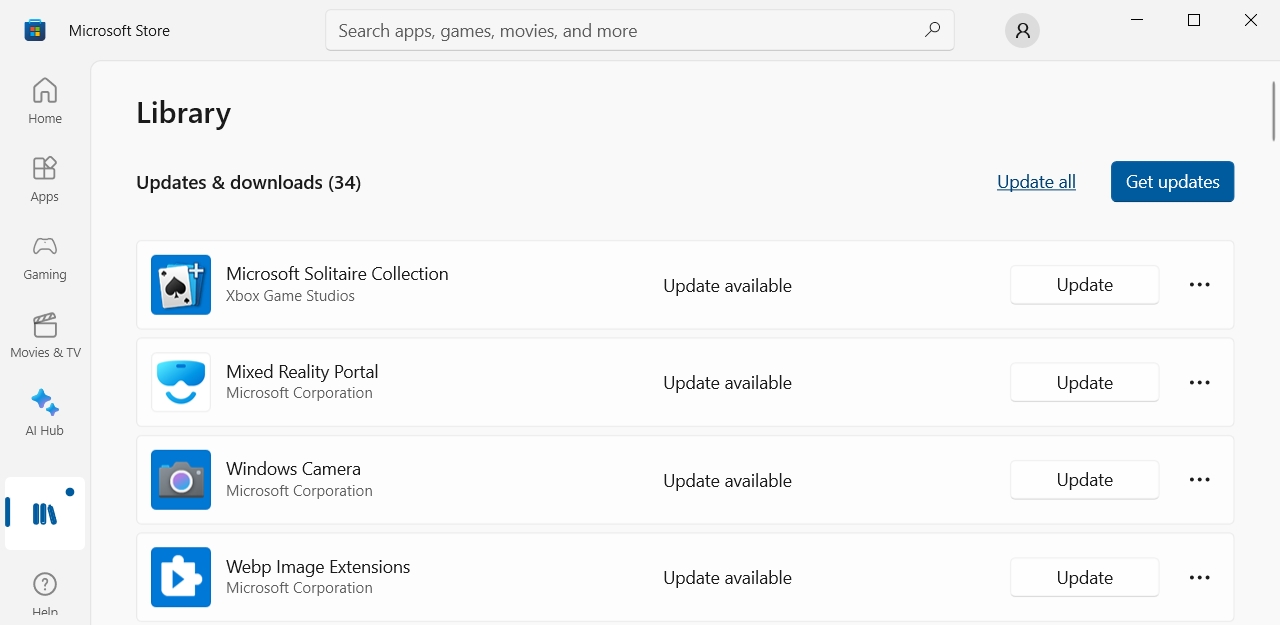
- App updates: Use your application store’s automatic update feature or regularly check for updates manually for installed software. Launch Microsoft Store, go to Settings and enable App updates. To manually install updates, go to Library and click Update all or review the list of installed apps and click Update for the ones you wish to update.
- Driver updates: Visit your laptop manufacturer’s website or use their dedicated utility tool to check for the latest driver updates. Pay special attention to updates for components like the BIOS, chipset and graphics drivers. Learn more about updating drivers on Windows 10.
Best Practices
- Update during charging: It’s advisable to perform updates while your laptop is plugged in, as the update process can be power-intensive.
- Backup before major updates: Before installing major updates, especially to the operating system or BIOS, ensure you have a current backup of important data.
- Monitor after updates: After updating, monitor your laptop’s performance and battery life. Sometimes, updates can introduce new issues, and keeping track can help in troubleshooting.
9. Use Battery Saving Features in Browsers
Using battery-saving features in web browsers is a crucial strategy for extending your laptop’s battery life. Modern web browsers, such as Google Chrome, Mozilla Firefox, and Microsoft Edge, are often resource-intensive applications, especially when multiple tabs and extensions are in use. These browsers have developed features and settings to minimize their impact on battery life. Here’s how you can leverage these features:
- Enable built-in power saving modes:
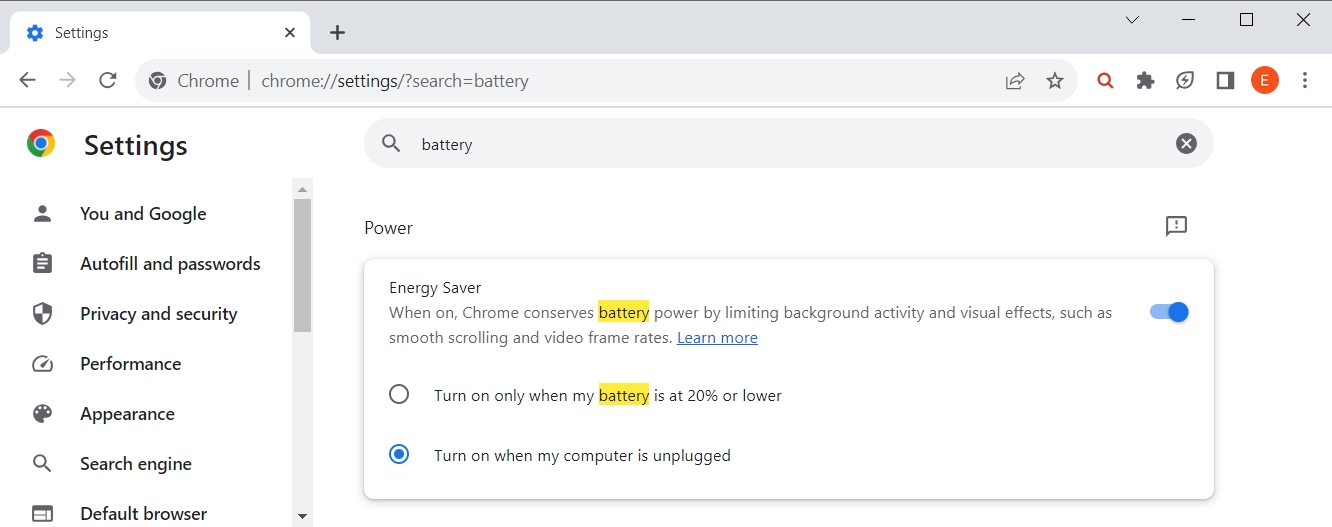
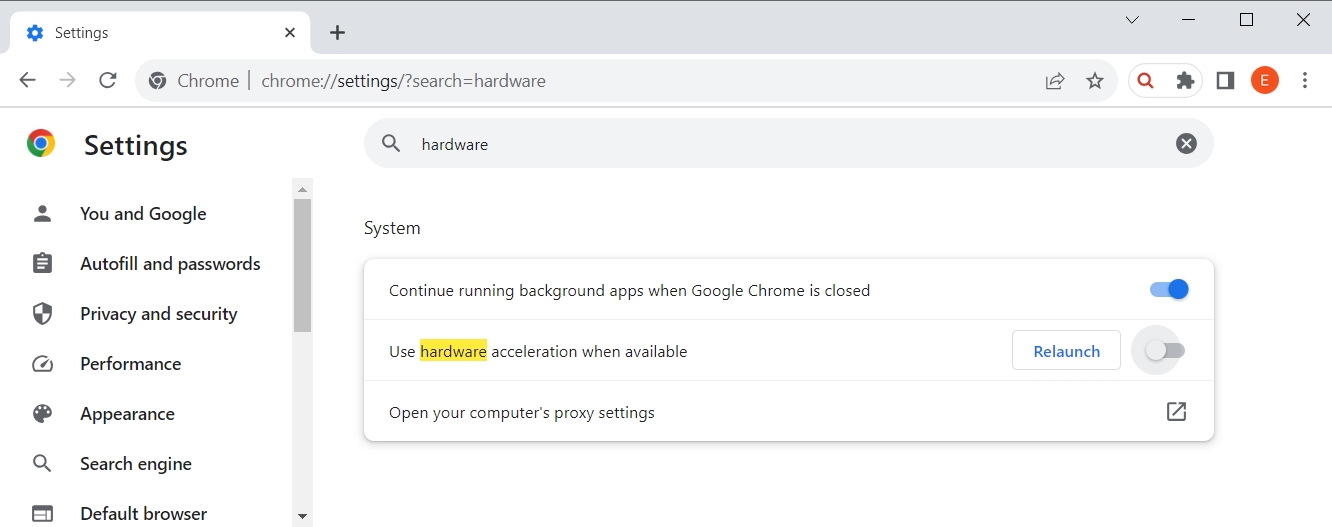
- Google Chrome – Enable Energy Saver and select Turn on when my computer is unplugged. Additionally, disable Use hardware acceleration when available and relaunch Chrome to apply modifications.
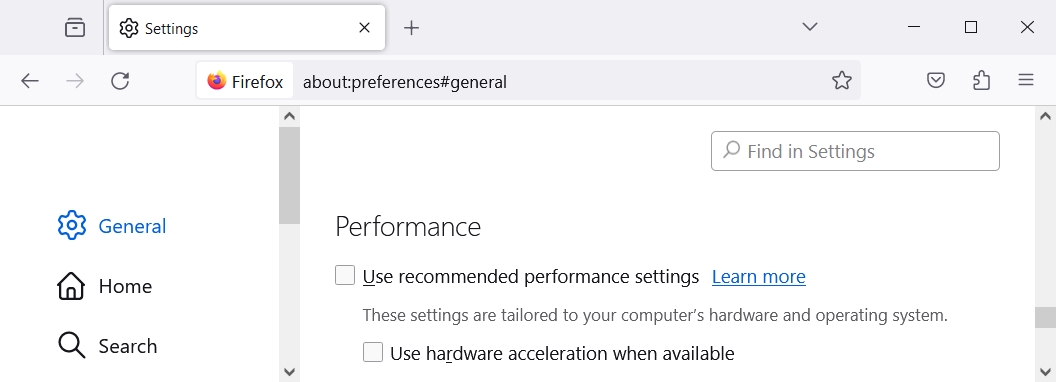
- Mozilla Firefox – Disable Use recommended performance settings and Use hardware acceleration when available.
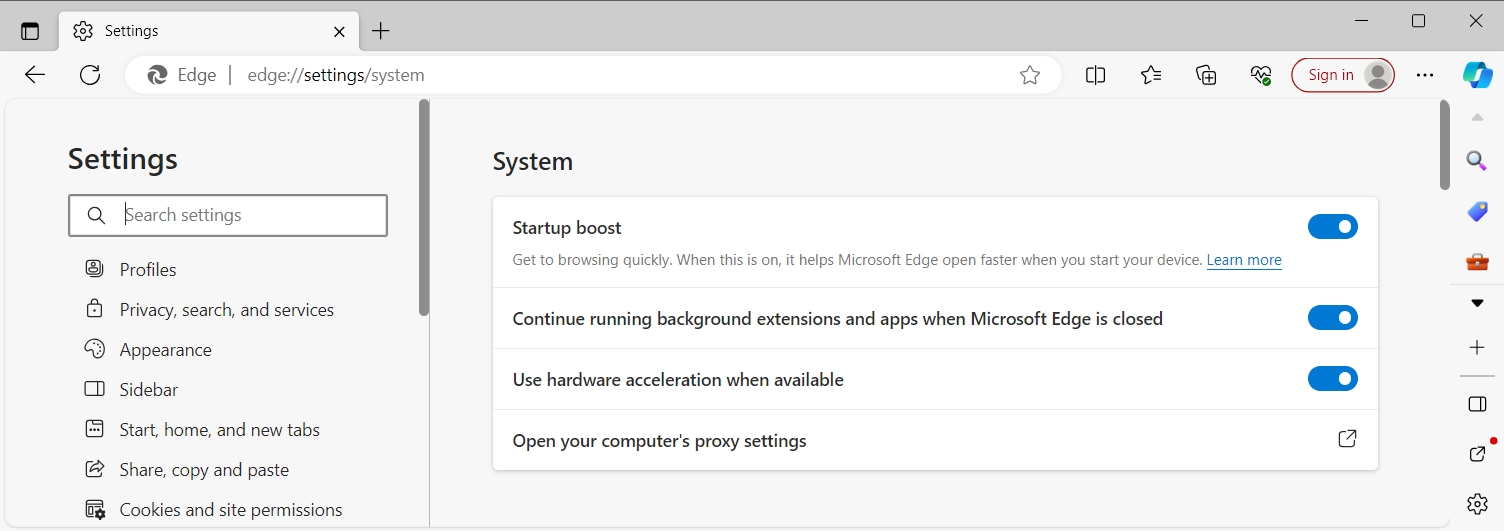
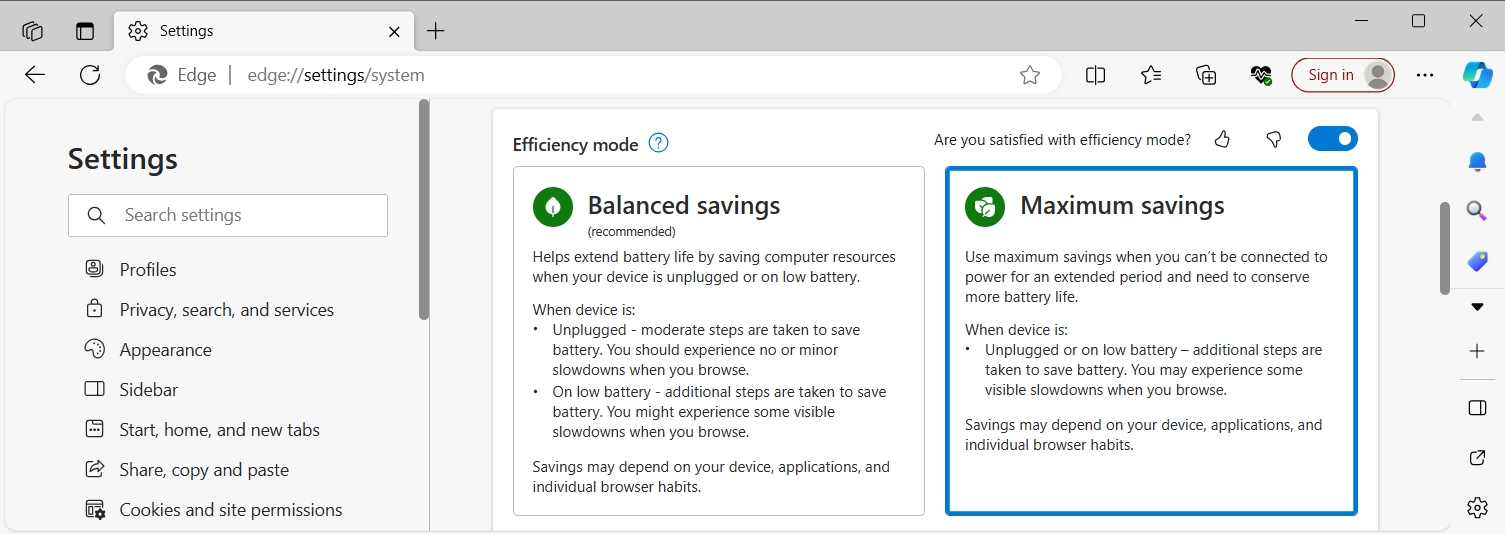
- Microsoft Edge – Disable Use hardware acceleration when available and set Efficiency mode to Maximum savings.
- Google Chrome – Enable Energy Saver and select Turn on when my computer is unplugged. Additionally, disable Use hardware acceleration when available and relaunch Chrome to apply modifications.
- Reduce tab usage since each opened tab consumes resources:
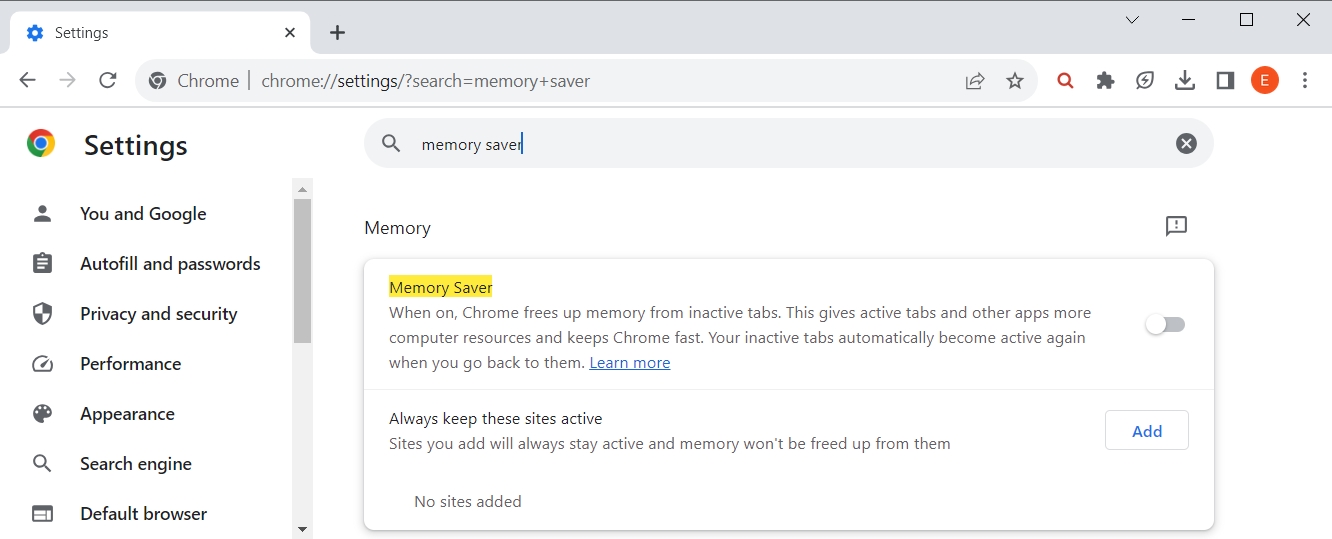
- Google Chrome – Enable Memory Saver.
- Mozilla Firefox – Go to
about:unloadsand click Unload for each opened tab.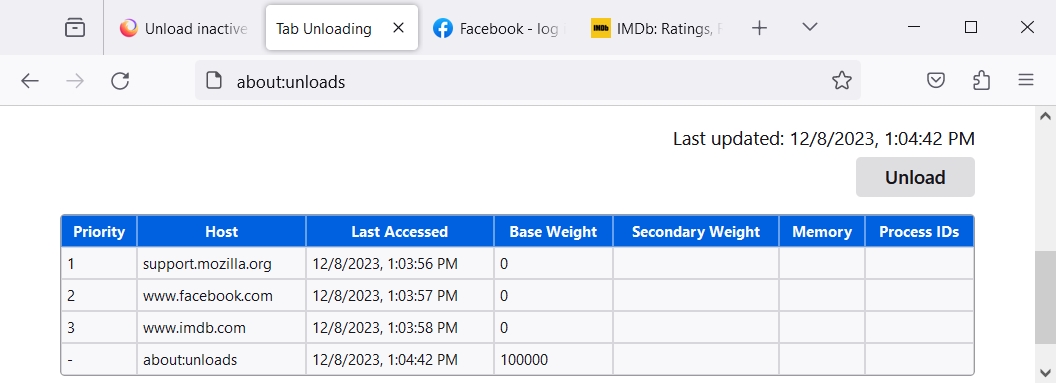
- Microsoft Edge – Enable Save resources with sleeping tabs and Fade sleeping tabs.

- Google Chrome – Enable Memory Saver.
- Disable unnecessary extensions and plugins since too many will significantly drain your battery.
- Adjust browser settings to reduce background activities like notifications or background refresh.
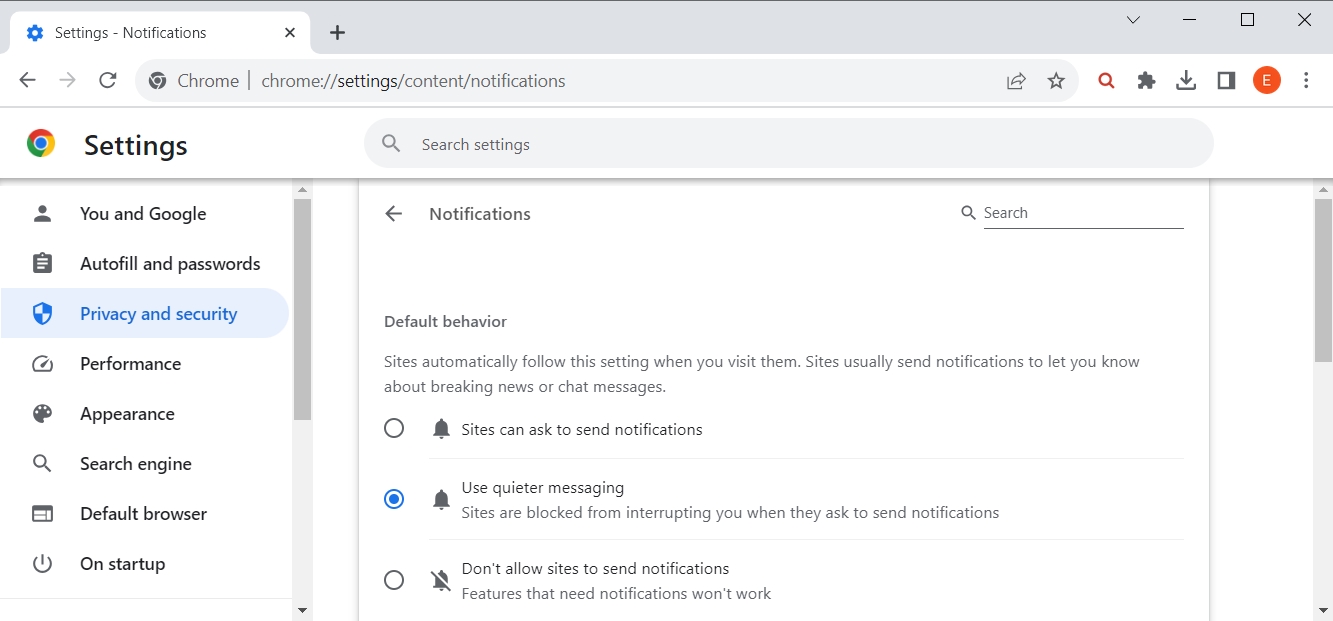
- Google Chrome – Go to Privacy and security > Site settings > Notifications and select Use quieter messaging.
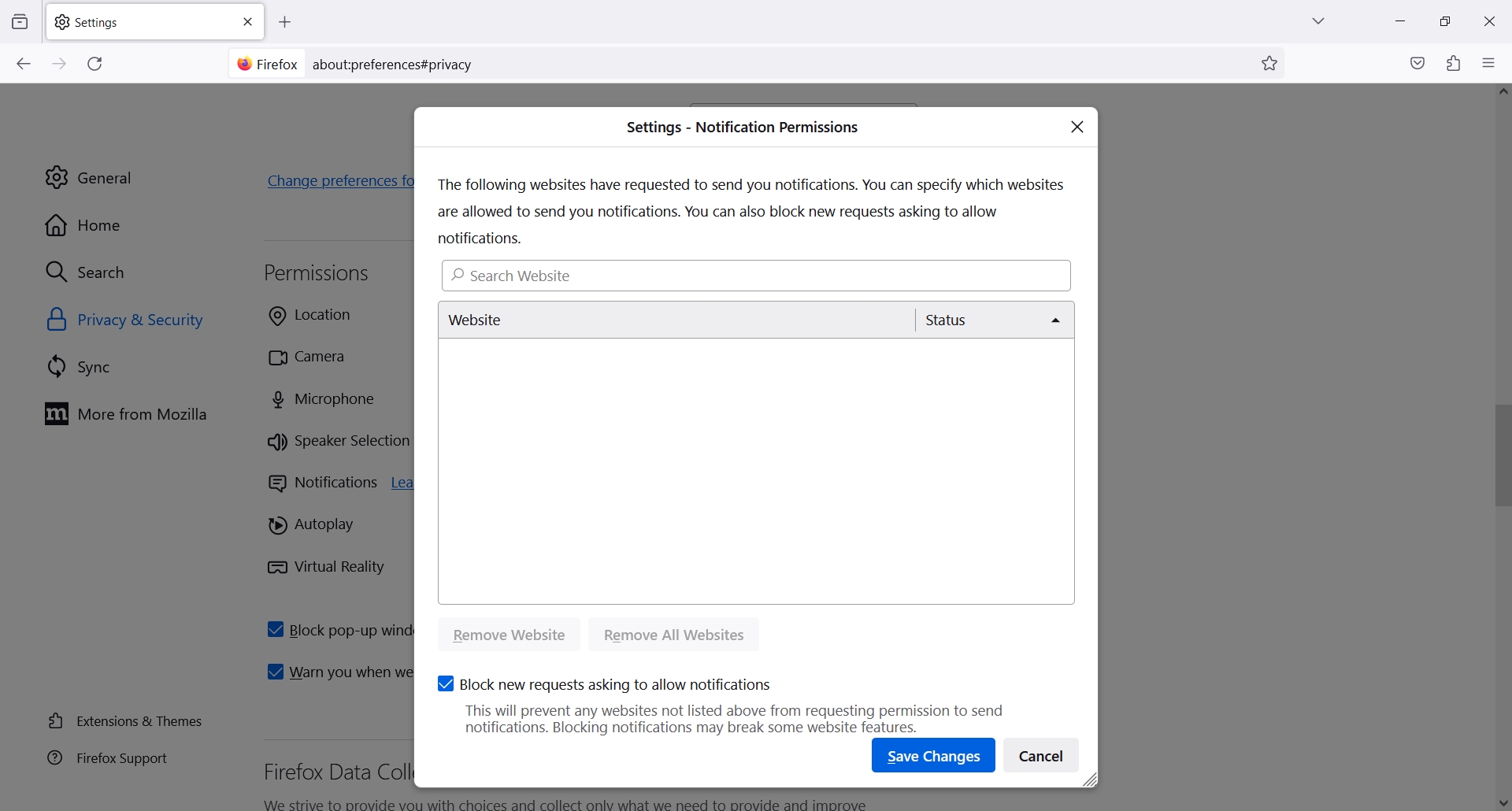
- Mozilla Firefox – Find Privacy & Security > Notifications > Settings, enable Block new requests asking to allow notifications and add exceptions.
- Microsoft Edge – Reach Cookies and site permissions > Notifications and enable Ask before sending and Quiet notification requests.
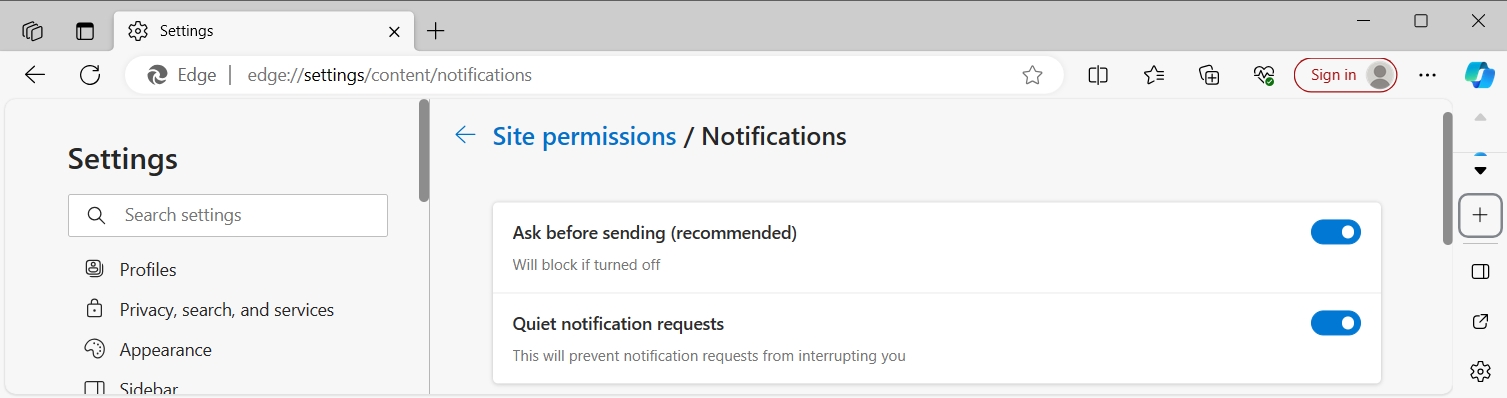
- Google Chrome – Go to Privacy and security > Site settings > Notifications and select Use quieter messaging.
- Stop videos from automatically playing when you visit a website. For example, you can use AutoplayStopper for Chrome or Video Autoplay Blocker for Firefox.
- Avoid or limit time spent on streaming and graphics-intensive websites since they load heavy multimedia content that quickly drain your laptop’s battery.
- Update your web browser regularly since developers continuously work on optimizing their software for better performance and efficiency.
- Consider switching to a lightweight browser like Opera or Brave. For instance, you can prepare a bare-minimum web browser (e.g. no video autoplay, no extensions) to use only your laptop is running in battery mode.
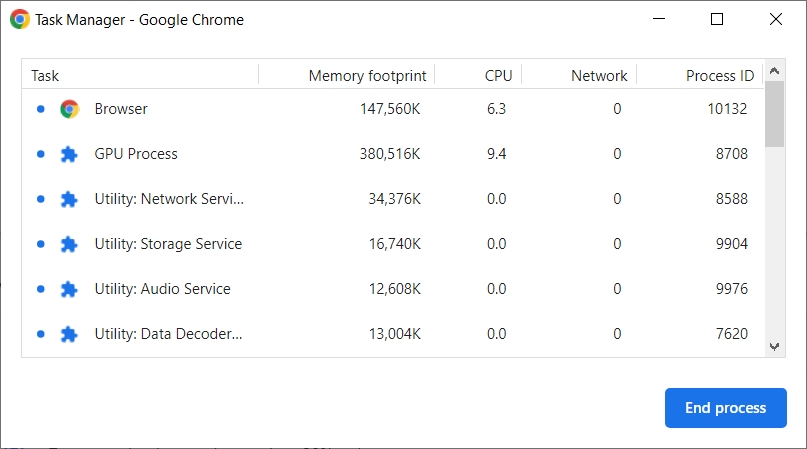
- Periodically monitor the resource usage of your browser in its task manager to identify if a particular website or the software itself is consuming too much power. In Chrome, Firefox or Edge, go to More tools > Task Manager (or press Shift + Esc).
10. Limit Use of Multimedia
Multimedia content, such as streaming videos, playing music, or engaging in graphics-intensive activities, tends to consume significant system resources, which in turn affects battery usage. Here’s a detailed explanation of how limiting multimedia usage can help improve battery life:
- High resource demand: Multimedia applications, especially those that are graphics and audio-intensive, require substantial processing power and memory. This high resource demand translates to increased energy consumption.
- Display and graphics card usage: Watching videos or playing games often means utilizing the laptop’s display and graphics card to their full potential. These components are among the biggest consumers of battery power.
- Speaker usage: Playing audio, whether through speakers or connected headphones, also consumes battery power, though to a lesser extent than video playback or gaming.
- Network usage for streaming: Streaming content online further increases battery usage, as it involves using the Wi-Fi or Ethernet network, which also draws power.
Follow these strategies to limit multimedia usage to extend your laptop’s battery life on Windows 10:
- Reduce streaming quality: Opt for lower streaming quality when watching videos online. Higher quality streams require more processing power and thus consume more battery.
- Download instead of streaming: Downloading content in advance when connected to a power source can save battery life later, as playing downloaded media typically uses less battery than streaming.
- Use audio-only modes: If possible, switch to audio-only modes in apps where visuals aren’t essential, as audio consumes less power than video.
- Limit gaming time: Gaming is particularly power-intensive. Limiting game-playing sessions on battery power can significantly conserve battery life.
- Adjust Display Settings: Lower the screen brightness and use energy-efficient display settings when watching videos or engaging with multimedia content.
11. Reduce Multitasking
Reducing multitasking on your laptop can significantly increase its battery life on Windows 10. Multitasking refers to having multiple applications or processes running at the same time. While modern laptops are designed to handle several tasks simultaneously, this capability can come at the cost of increased battery consumption. The more RAM, CPU, GPU or HDD/SDD is being used, the faster the battery will drain.
Follow these easy strategies to reduce multitasking:
- Close unnecessary applications: Actively close programs that you are not using. Even if they are running in the background, they can still consume power.
- Limit browser tabs: Each open browser tab is a separate process that consumes resources. Try to keep only the necessary tabs open.
- Single-task focus: Cultivate a habit of focusing on a single task at a time. Not only does this save battery life, but it can also improve productivity and concentration.
- Use Task Manager: Regularly check the Task Manager to identify and close resource-intensive processes.
- Disable background applications: Some programs continue to run in the background and periodically check for updates or notifications. Disable this feature in the settings of these apps.
- Task scheduling: Plan your tasks in a way that allows you to focus on one thing at a time. Schedule demanding tasks when your laptop is plugged in and save less intensive tasks for when you’re on battery power.
- Efficient workflow tools: Utilize tools and apps that consolidate multiple functions into one. For example, use an all-in-one email and calendar app instead of separate ones.
- Adjust application settings: In programs that you frequently use, explore settings that might reduce power consumption, like disabling auto-sync, reducing update frequency, or turning off unnecessary visual effects.
- Cloud sync optimization: If you use cloud services that sync files or data, adjust their settings to sync less frequently or only when connected to power.
- Opt for lightweight alternatives: Some software applications have lightweight versions or alternatives that use fewer system resources, thus saving battery power.
12. Regularly Defragment Your Hard Drive
Periodically defragmenting your hard drive, particularly in the context of traditional mechanical Hard Disk Drives (HDDs), can indirectly contribute to improving your laptop’s battery life. Defragmentation reorganizes fragmented data, so files are stored in contiguous segments. This reduces the mechanical workload of the HDD, as the read/write head has fewer movements to make when accessing data. When your HDD works more efficiently, it requires less power to perform operations. While the energy savings per operation are small, they add up over time, contributing to overall better battery performance.
Follow these instructions to defragment your hard drive on Windows 10:
- Search for Defragment and Optimize Drives in the Start menu and open it.
- Select the drive you want to defragment. It’s usually the C: drive if you have just one hard drive.
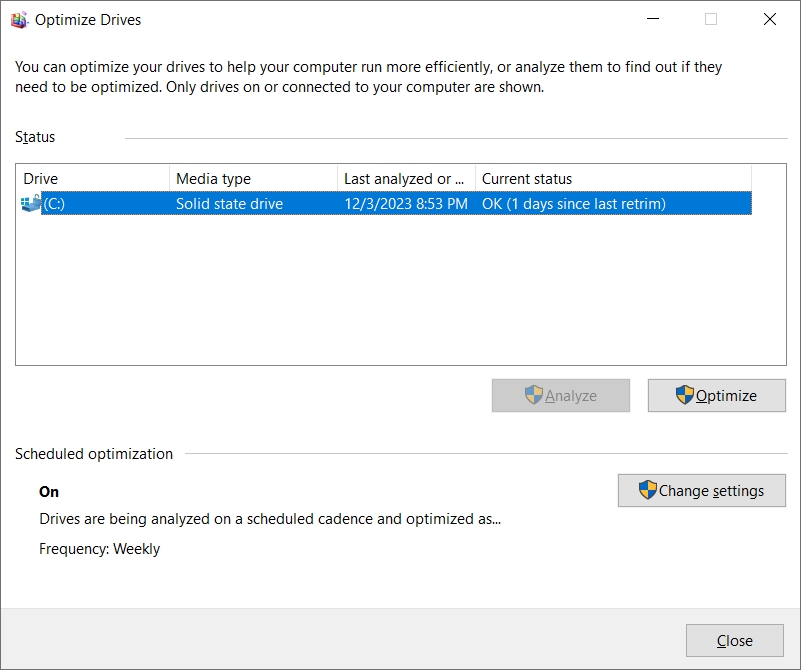
- Click Analyze to see if the drive needs defragmentation. Windows will report whether the drive is fragmented.
- If the drive is fragmented, click Optimize. The process can take anywhere from several minutes to a few hours, depending on the drive’s size and degree of fragmentation.
Tips
- The frequency of defragmentation depends on how heavily you use your computer. Monthly defragmentation is adequate for most users.
- Do not defragment SSDs. These drives have a different type of memory and access data differently than HDDs. Defragmenting an SSD can actually shorten its lifespan.
- Modern versions of Windows automatically defragment hard drives on a regular schedule. You can check and adjust this schedule in the defragmentation tool.
- It’s best to avoid using your PC for other tasks while defragmenting, as this can slow down the process.
13. Opt for SSD Over HDD
Opting for a Solid-State Drive (SSD) over a traditional Hard Disk Drive (HDD) can be a significant factor in extending your laptop’s battery life. The difference in how these two types of drives operate plays a crucial role in their impact on power consumption. Here’s an in-depth look at how choosing an SSD over an HDD can benefit your laptop’s battery life:
- No moving parts – Unlike HDDs, SSDs have no moving mechanical components. HDDs use spinning disks and moving read/write heads, which require more power. The lack of moving parts in SSDs means they consume less energy.
- Faster data access – SSDs provide quicker data access and boot times. Since they operate more efficiently and complete tasks faster, they spend less time drawing power compared to HDDs, which take longer to read and write data due to their mechanical nature.
- Lower heat generation – SSDs generate less heat than HDDs. Since excess heat can cause other laptop components to work harder (and thus use more battery power), the cooler operation of SSDs contributes to overall energy efficiency.
- Durability and reliability – SSDs are more resistant to physical shock and are less likely to suffer damage due to movement, which is beneficial for mobile users. While this doesn’t directly save battery life, it contributes to a longer overall lifespan of your storage media, potentially reducing the energy costs associated with data recovery or drive replacement.
Additional Considerations
- Battery savings – The actual amount of battery life extended by using an SSD varies depending on the system configuration and usage patterns. However, generally, the battery life improvement can be noticeable, especially in laptops where the HDD was a primary bottleneck in power efficiency.
- Capacity and cost – Historically, SSDs have been more expensive than HDDs, especially at higher storage capacities. However, prices have been steadily decreasing, making SSDs a more viable option for many users.
- Compatibility and upgrading – Most modern laptops come with SSDs, but if you’re using an older model with an HDD, it’s often possible to upgrade to an SSD. This upgrade can breathe new life into an older machine, improving both performance and battery life.
14. Disconnect Peripherals
Unplugging peripherals from your laptop is a straightforward yet effective way to conserve battery life on Windows 10. Peripherals are external devices like USB drives, external hard drives, mice, keyboards and even connected smartphones or tablets.
Follow these tips to manage external devices to increase your laptop’s battery life:
- Disconnect peripherals when you’re not using them. This is especially important for devices that draw significant power, like external hard drives.
- Opt for using the laptop’s built-in keyboard, touchpad and speakers rather than external ones when on battery power.
- Safely eject and then unplug USB drives after transferring data. Some USB devices have lights or other indicators showing they are powered, which can be a helpful reminder.
- If your laptop is charging connected devices (like smartphones), this can significantly drain the battery. Disconnect these devices or turn off the charging feature.
- Turn off Bluetooth and Wi-Fi when not using wireless peripherals to save power.
- Be mindful of how often and which peripherals you use. Sometimes the convenience of an external device may not be worth the battery drain if there’s an alternative.
15. Avoid Extreme Temperatures
Both very cold and very hot environments can adversely affect lithium-ion batteries, which are commonly used in laptops, dramatically reducing their performance and longevity. Most laptop batteries operate best in a temperature range of about 20°C to 25°C (68°F to 77°F).
Follow these tips to avoid extreme temperatures and prolong your laptop’s battery life:
- Avoid direct sunlight – Don’t leave your laptop in direct sunlight for extended periods, such as in a parked car on a hot day.
- Controlled environment – Use and store your laptop in temperature-controlled environments as much as possible.
- Avoid cold exposures – Don’t leave your laptop in a cold environment for long periods, like in a car overnight in winter.
- Proper ventilation – Ensure your laptop has proper ventilation while in use, especially during heavy tasks that may cause it to heat up. Avoid blocking air vents.
- Use on hard surfaces – Use your laptop on hard surfaces that allow for adequate air circulation. Soft surfaces like beds or couches can trap heat.
- Heat dissipation accessories – Consider using cooling pads or external fans to help dissipate heat during intensive operations.
- Long-term storage – If you need to store your laptop for an extended period, do so in a place with a stable, moderate temperature. Also, store it with the battery charged to about 40% to 50%, which is the optimal charge level for long-term battery storage.
- Monitoring temperature – Some laptops and third-party applications offer tools to monitor the internal temperature of your laptop. Keeping an eye on this can help you take action if your device starts to overheat.
16. Keep Your Laptop Clean
Maintaining cleanliness is crucial for the optimal operation of your laptop’s health and performance, which indirectly affects battery life. Dust, dirt and other debris can accumulate over time, which can lead to overheating, increased fan speed and battery straining.
Follow these tips to keep your laptop clean:
- Regular cleaning – Use a soft, slightly damp lint-free cloth to wipe down the exterior of your laptop. Avoid using household cleaners unless recommended by the manufacturer.
- Air vents – Pay special attention to the air vents. Use compressed air to blow dust out of these areas. Be sure to do this in a well-ventilated area and follow the instructions on the compressed air canister.
- Keyboard and touchpad – Keep the keyboard and touchpad clean, as debris in these areas can also contribute to internal dust accumulation.
- Internal cleaning – For thorough cleaning, consider having your laptop’s internals cleaned by a professional, especially if you’re not comfortable opening it up yourself. They can remove dust from the cooling fan and other critical areas.
- Environment – Try to use your laptop in clean, dust-free environments as much as possible. This can significantly reduce the amount of dust that gets inside.
- Avoid direct sunlight – Keeping your laptop out of direct sunlight not only prevents it from overheating but also prevents dust from settling and sticking to heated surfaces.
- Protective cases – Use protective cases or covers, especially during transportation, to minimize dust and dirt exposure.
- Humidity and spills – Keep your laptop away from high humidity areas and be careful with liquids. Spills can cause significant damage and affect battery life. This means not eating or drinking above your laptop while gaming or streaming.
17. Use Original Power Adapters
Using the original power adapter, or at least a high-quality, manufacturer-approved alternative, is essential for the health of your laptop’s battery. Here’s why:
- Optimal charging – Original adapters are designed to deliver the correct voltage and amperage required for your specific laptop model. This ensures that the battery is charged efficiently and safely, without overcharging or undercharging, which can harm battery health.
- Battery health and safety – Non-original or counterfeit chargers may not adhere to the same quality and safety standards. They can cause fluctuating power supplies or even electrical damage to the laptop, leading to reduced battery capacity and lifespan. In worst-case scenarios, they can pose fire hazards or damage the laptop’s internal components.
- Efficiency and longevity – Batteries charged with their intended adapters tend to maintain their efficiency for a longer period. This means the battery holds its charge better and lasts longer on a single charge, which is key for extending its overall life.
- Prevention of heat issues – Original chargers are designed to minimize heat generation during charging, which is important because excessive heat can degrade the battery.
- Non-original adapters – When using third-party adapters, you risk mismatched voltage or current ratings that can either undercharge or overcharge the battery, reducing its efficiency and lifespan. Plus, non-original charges often have poor quality components that lack essential safety features like surge protection, leading to potential risks.
You can get replacement adapters directly from the laptop manufacturer or authorized dealers. Just ensure that the specifications (voltage, current, and connector type) match those of the original adapter.
If using third-party adapters because the alternative is impossible, opt for reputable brands that specifically mention compatibility with your laptop model. These are more likely to adhere to safety and quality standards compared to generic or counterfeit chargers.
18. Regularly Calibrate Your Battery
Periodically calibrating your laptop’s battery is an important maintenance task, especially for older batteries. Calibration helps maintain an accurate reading of your battery’s charge level, ensuring that the software that monitors your battery life is in sync with the battery’s actual performance. It can extend the overall lifespan of your battery by ensuring it’s being charged and discharged properly.
Follow these steps to calibrate your laptop’s battery:
- Fully charge the battery – Start by charging your laptop’s battery to its full capacity. Leave it plugged in for two to three hours after it reaches 100% to ensure it’s completely charged.
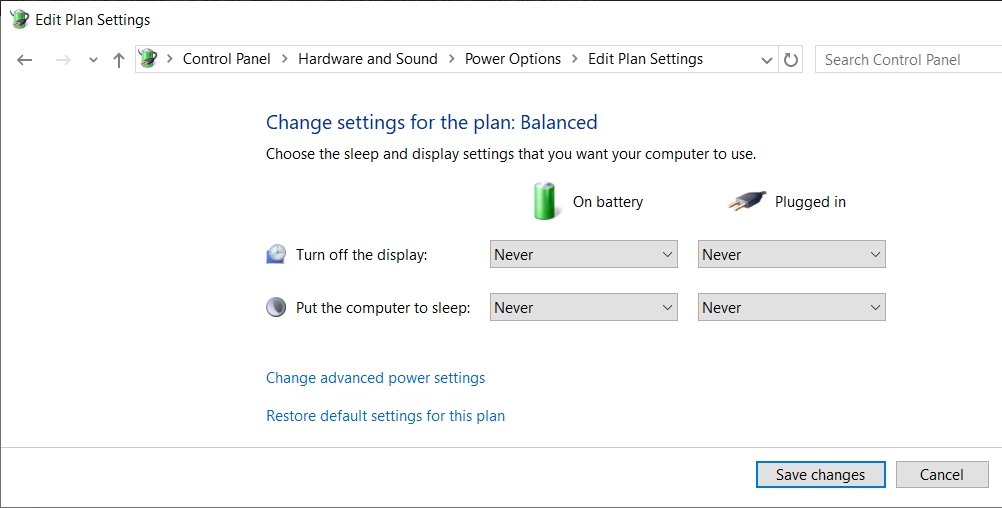
- Change power settings – Temporarily change the power settings to prevent your laptop from going to sleep or hibernating. Go to Control Panel > Hardware and Sound > Power Options, select your current plan, and set Turn off the display and Put computer to sleep to Never for both On battery and Plugged in.
- Discharge the battery – Disconnect the power supply and let the laptop run on battery power. Use it as you normally would, but avoid activities that drain the battery too quickly. Let the battery discharge until the laptop shuts down by itself.
- Let the laptop rest – Once your laptop has shut down, don’t charge it immediately. Let it rest and remain turned off for at least 5 hours, or even overnight.
- Recharge to 100% – Finally, charge the laptop back to 100% without interruption. Once it’s fully charged, you can restore your original power settings.
19. Consider Battery Replacement
A battery replacement should be the last resort after trying out every other solution to improve your laptop’s battery life. Getting a new battery is often inevitable as the device ages. Laptop batteries, like all rechargeable batteries, have a limited lifespan and will eventually start to hold less charge and may even fail completely.
Here are the signs that you need a battery replacement:
- Reduced battery life – Your battery doesn’t last as long as it used to and you find yourself needing to charge more frequently.
- Swelling or physical damage – This includes any visible swelling, warping or other physical damage.
- Unexpected shutdowns – This happens especially when the battery indicator shows remaining charge.
- Failing to charge – The battery no longer charges to 100% or fails to charge at all.
Considerations
- Warranty and support – Check if your laptop is still under warranty. Some manufacturers may replace the battery for free or at a reduced cost if the laptop is still covered.
- Type of battery – Ensure you get the correct battery type for your specific laptop model. Using an incorrect or low-quality battery can lead to performance issues and might even damage your laptop.
- Professional replacement – For laptops with non-user-replaceable batteries, it’s best to have the battery replaced by a professional or an authorized service center to avoid any risk of damage.
Frequently Asked Questions (FAQs) on Laptop Battery Life
How often should I calibrate my laptop’s battery?
It’s recommended to calibrate your battery every 2-3 months. This process involves fully charging, then completely draining, and finally recharging the battery to 100%.
Can I overcharge my laptop battery by leaving it plugged in?
Modern laptops are designed to stop charging once the battery is full. However, constantly keeping the laptop plugged in can eventually reduce the battery’s lifespan. It’s good to occasionally drain the battery.
Does using my laptop while charging damage the battery?
No. Using your laptop while it’s charging is generally safe and doesn’t damage the battery. Just ensure that the laptop doesn’t overheat.
Is it bad to let my laptop battery fully discharge?
Avoid letting your battery fully discharge regularly. Lithium-ion batteries, used in most laptops, prefer partial discharges to deep ones.
How long does a laptop battery typically last?
A laptop battery’s lifespan varies but typically lasts 2-4 years, or around 1,000 charge cycles. A 2017 study has shown that laptop manufacturers usually overstate their battery life, so it’s important to lower your expectations when shopping for a new laptop and checking its specifications.
Conclusion
To recap, enhancing your laptop’s battery life on Windows 10 not only elevates your work and personal experience but also brings a multitude of practical benefits. By implementing methods like monitoring battery health, optimizing power settings, using hibernate mode, managing background applications and ensuring proper hardware maintenance, you can significantly extend your laptop’s battery life.